
 AsyaTicari
 AsyaRestoran
 AsyaOtel
 AsyaCrm
 AsyaKlinik
 AsyaSpor
 AsyaSSH
 AsyaEmlak
 AsyaFilo
 AsyaPuantaj
 AsyaİSG
 AsyaİHD
 Kolay Öğren
AsyaCrm · Contact
Email Templates
Reusable subject and HTML content templates for bulk e-mail: list, new template, editing and deleting.
Under Email Templates you store the subject and content of e-mails you send often — introductions, campaigns, announcements. A saved template appears in the Template list on the Send Email screen.
Template list
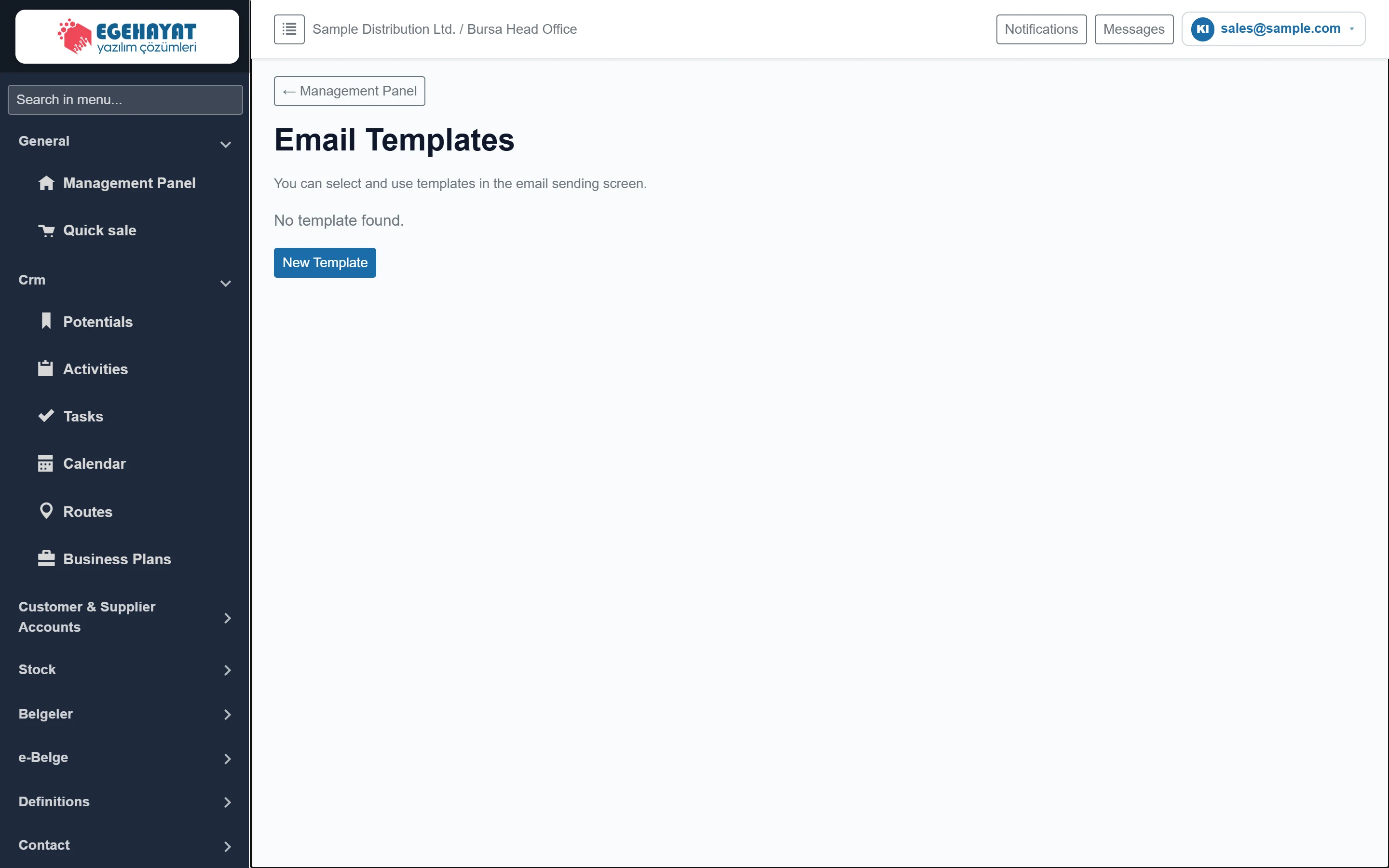
- 1← Management Panel Returns to the dashboard.
- 2Info Templates are selected on the Send Email screen.
- 3New Template Opens the new template form.
Without templates the screen shows only the New Template button. Once templates exist, the list comes with a search box, an Excel button and a grid with Template name / Subject. The row action menu holds Edit and Delete.
New template / editing a template
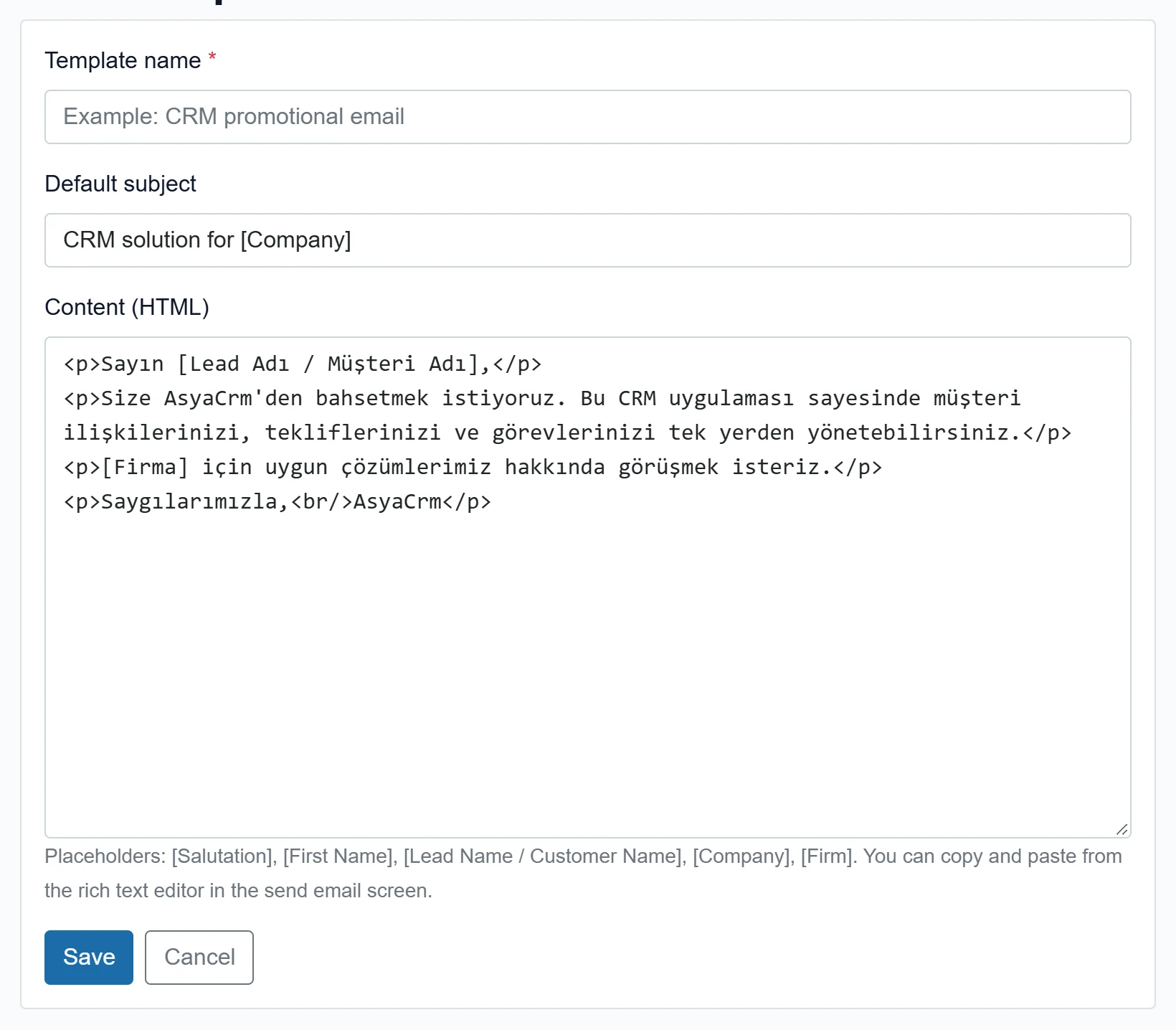
- 1Content (HTML) Written with HTML tags such as <p>, <br/>; the placeholder list is shown below.
- 2Save Saves the template and returns to the list.
- 3Cancel Returns to the list without saving.
| Field | Sign in | Description |
|---|---|---|
| Template name required | Text | Name shown in the list and in the template selection on Send Email. Required, up to 200 characters. Placeholder: «Example: CRM promotional email» |
| Default subject | Text | Goes into the Subject field when the template is loaded (up to 500 characters). Placeholder: «Example: CRM solution for [Company]» |
| Content (HTML) | Long text | E-mail body as HTML. A new template starts with a sample introduction text. Placeholder: «<p>Dear [Lead Name / Customer Name],</p>...» |
A new template starts with a sample introduction text in subject and content (currently in Turkish); replace it with your own text.
Available placeholders: [Hitap], [Ad], [Lead Adı / Müşteri Adı], [Firma], [Şirket] — replaced for each recipient when sending.
Step by step
- Click New Template.
- Enter the Template name (e.g. “Campaign announcement”).
- Fill in Default subject and Content (HTML).
- Click Save; you return to the list.
- On Send Email, select the template and click Upload template to use it.
Instead of writing HTML, format the text in the rich-text editor on Send Email, copy it and paste it here.
Delete removes the template permanently (a “Delete permanently” confirmation is shown); e-mails already sent are not affected.
Common messages
| Message | Cause | Solution |
|---|---|---|
| No template found. | The company has no templates yet. | Add the first one with New Template. |
| No records match your search. | The search matches no template name / subject. | Reset it with Clear. |
| Record not found. | The template being edited was deleted. | Return to the list and reload. |