
 AsyaTicari
 AsyaRestoran
 AsyaOtel
 AsyaCrm
 AsyaKlinik
 AsyaSpor
 AsyaSSH
 AsyaEmlak
 AsyaFilo
 AsyaPuantaj
 AsyaİSG
 AsyaİHD
 Kolay Öğren
AsyaCrm · Contact
Send Email
Personalised bulk e-mail to selected accounts and prospects: recipients, template, placeholders, sending interval and result.
On Send Email you send bulk e-mail to accounts and prospects that have an e-mail address. Each recipient gets a separate e-mail; placeholders in subject and content are replaced with the recipient's name and company. The screen appears only when the Email module is enabled, and e-mails are sent through the SMTP account under Settings → Email Settings.
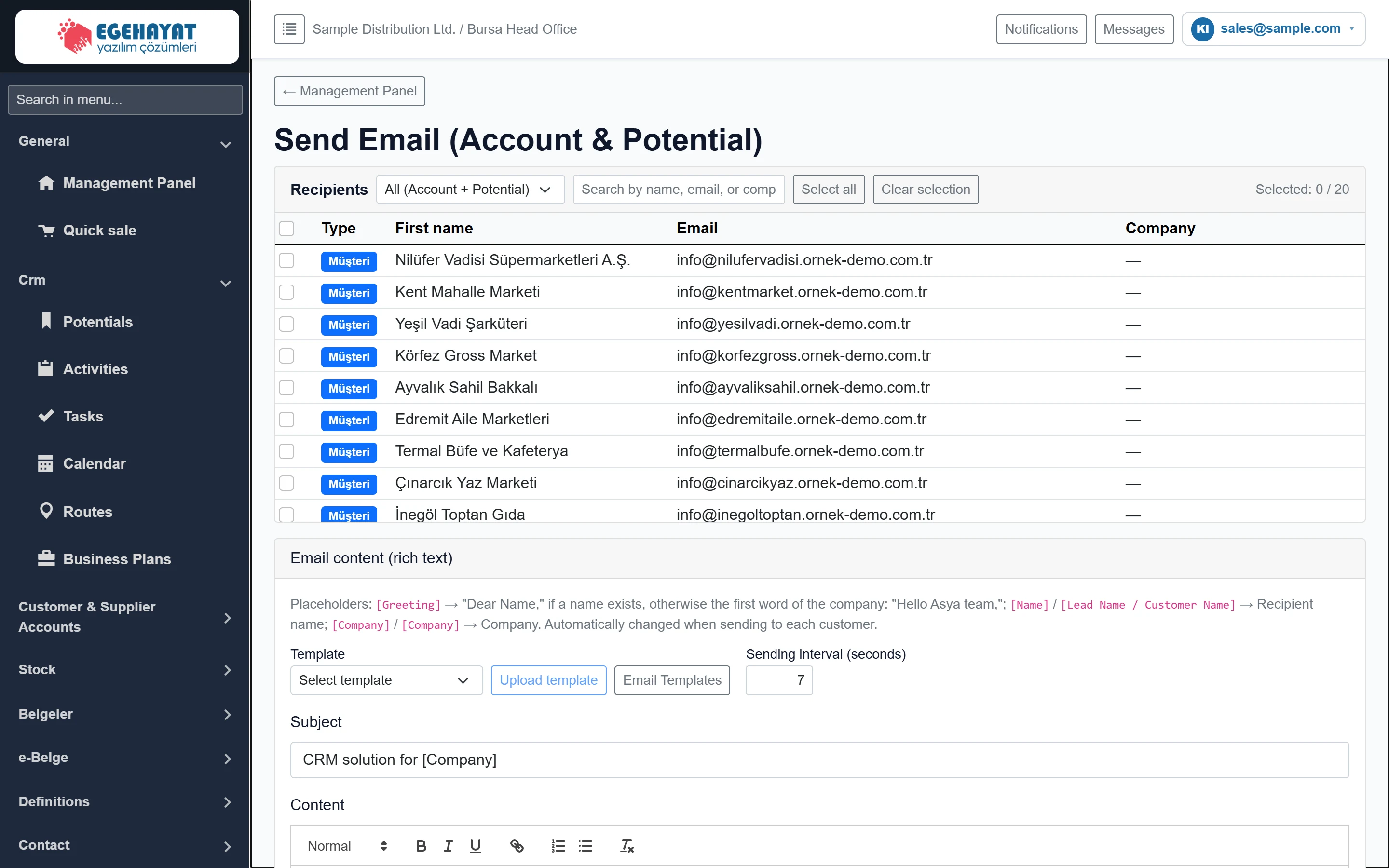
- 1Recipient filter Type, search and bulk selection.
- 2Recipient row Only accounts and prospects with an e-mail address are listed.
- 3Email content Template, subject and rich-text content.
1. Select recipients
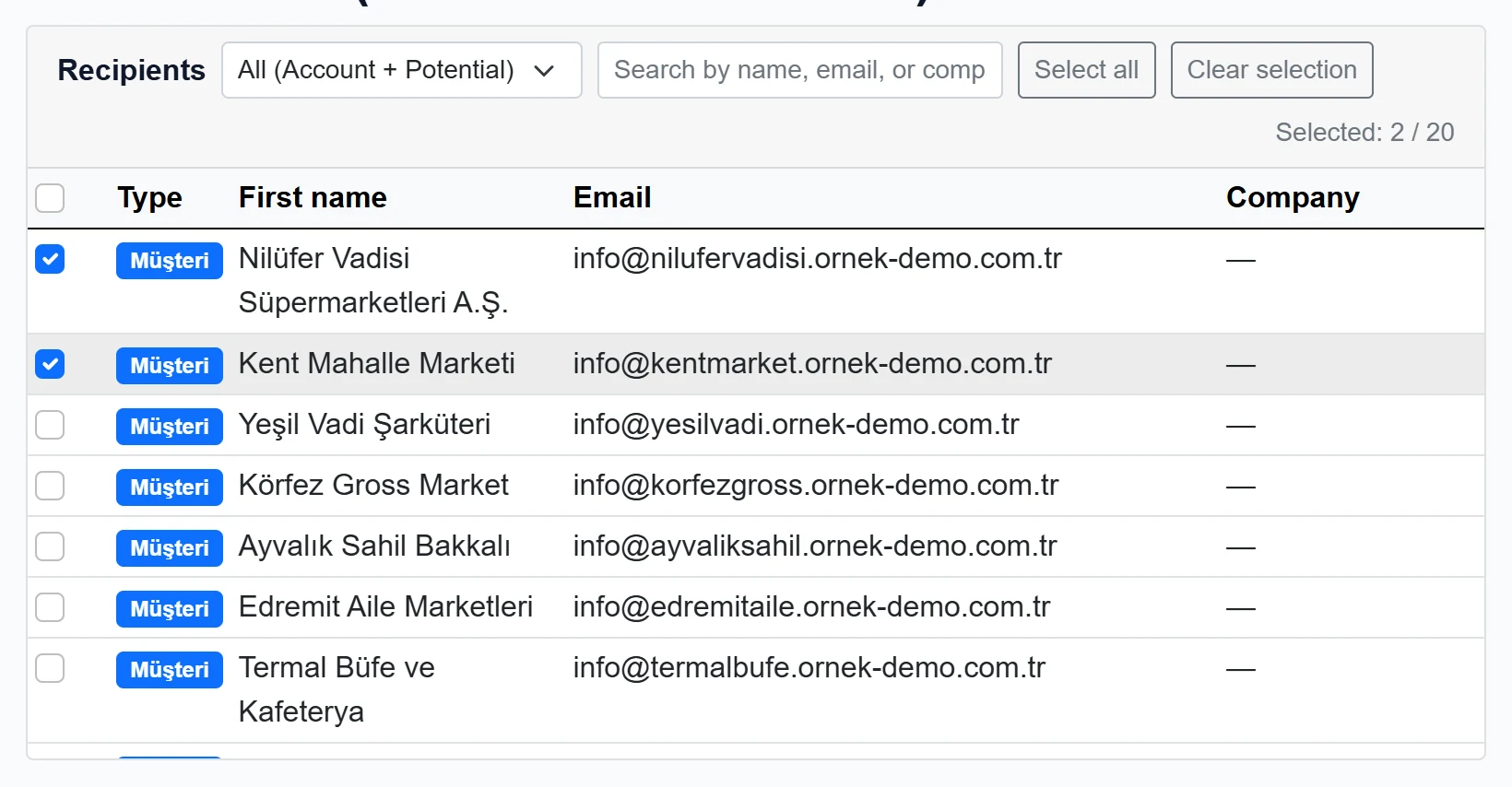
- 1Recipient type All (Accounts + Prospects), Accounts only, Prospects only.
- 2Search Name, e-mail or company; filters when you leave the box.
- 3Select all Selects everyone visible in the list.
- 4Clear selection Clears all selections.
- 5Selected count Selected / visible recipients.
- 6Select all The header box checks / unchecks all rows.
- Only records with an e-mail address are listed. The Type badge shows whether it is an account or a prospect (the badge text is currently Turkish: «Müşteri» / «Aday»).
- The type list shows accounts only or prospects only.
- Type a name, e-mail or company in the search box; the list filters when you leave the box.
- Select all checks everything visible; Clear selection removes all checks. The counter on the right shows selected / visible recipients.
2. Prepare the content
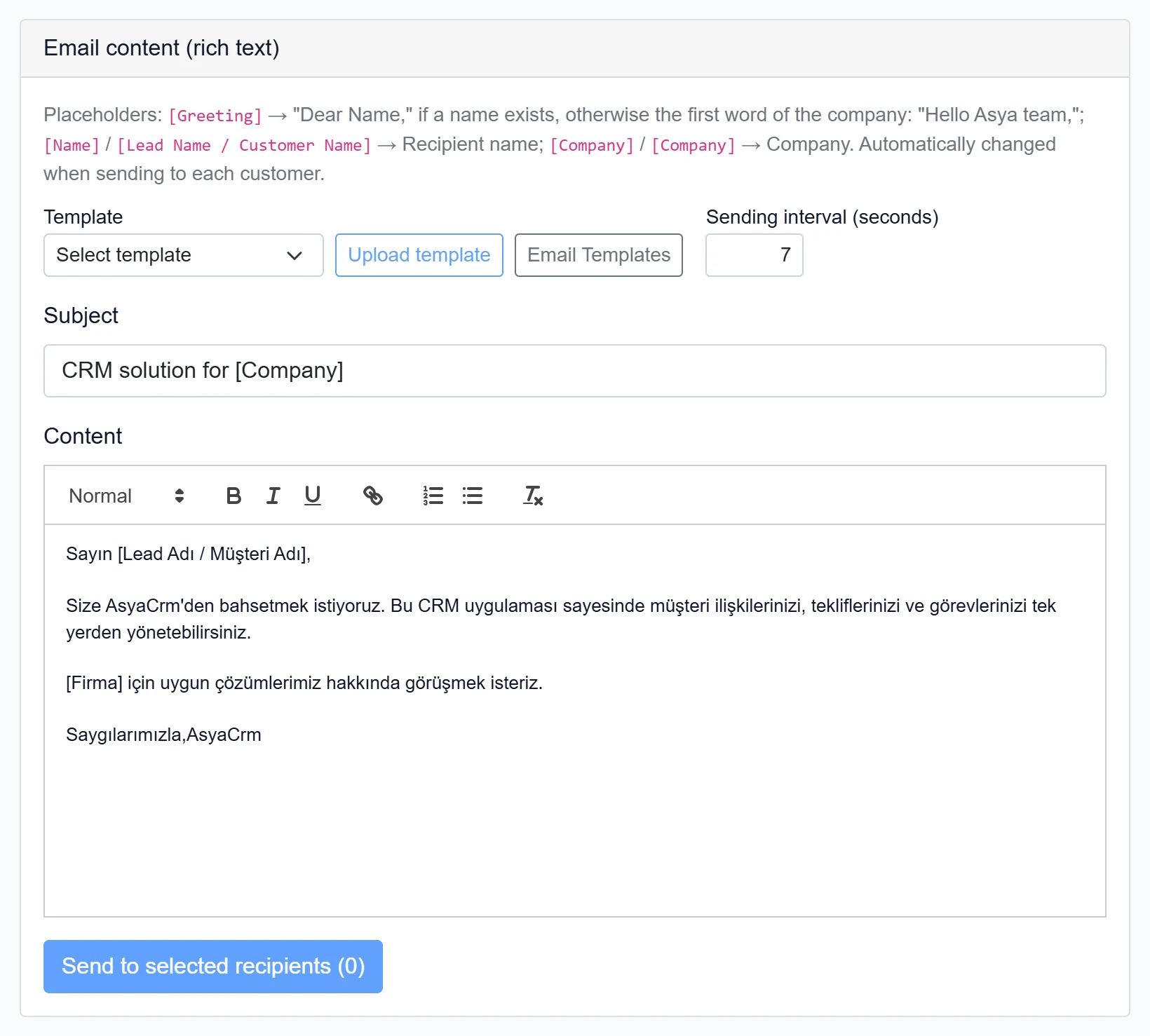
- 1Placeholders [Hitap], [Ad], [Firma] … are replaced per recipient when sending.
- 2Upload template Loads the subject and content of the selected template.
- 3Email Templates Opens the template list in a new tab.
- 4Formatting tools Bold, italic, underline, link, lists, clear formatting.
- 5Send to selected recipients (0) Sends to the selected recipients one by one; the number is in brackets.
| Field | Sign in | Description |
|---|---|---|
| Template | Choice list | A template saved on the Email Templates screen. Select it and use Load template to fill subject and content. |
| Sending interval (seconds) | Text | Seconds to wait between two e-mails (0–60). If 0, half a second; 5–10 is recommended to stay within server limits. |
| Subject | Text | Subject of the e-mail; placeholders (such as [Firma]) are replaced per recipient. Placeholder: «Example: CRM solution for [Company]» |
| Content | Choice list | Rich-text editor: bold, italic, links, lists. Placeholders work here too. |
Placeholders:
| Placeholder | Replaced with |
|---|---|
| [Hitap] | “Sayın Name,” if the recipient has a name, otherwise a greeting with the first word of the company |
| [Ad], [Lead Adı / Müşteri Adı] | Recipient's name |
| [Firma], [Şirket] | Recipient's company |
3. Send
- Check the recipients.
- Select a template and click Upload template (loads it into the form), or write subject and content yourself.
- Set the Sending interval (seconds).
- Click Send to selected recipients (n). While sending, the button shows “Sending...”; e-mails go out one by one with the interval in between.
- When finished, a summary “Completed. Sent: …, Error: …” appears at the bottom with the failed addresses (first 10).
Sent e-mails cannot be recalled. Before a bulk send, select only your own address and do a test. Do not close the page until sending is finished; otherwise the remaining recipients get nothing.
Gmail and Outlook / Microsoft 365 may temporarily block an account that sends many e-mails quickly. Keep the sending interval at 5–10 seconds.
Common messages
| Message | Cause | Solution |
|---|---|---|
| No record found with an email address, or none match the filter. | Cards have no e-mail, or the search is too narrow. | Add e-mail addresses to the cards; clear the search. |
| If you use Gmail or Outlook / Microsoft 365 … Email Settings … you may need to use an application password. | SMTP login error (535, 5.7.x). | Enter an app password under Email Settings. |
| Send button disabled | No recipient selected. | Check at least one recipient. |