
 AsyaTicari
 AsyaRestoran
 AsyaOtel
 AsyaCrm
 AsyaKlinik
 AsyaSpor
 AsyaSSH
 AsyaEmlak
 AsyaFilo
 AsyaPuantaj
 AsyaİSG
 AsyaİHD
 Kolay Öğren
AsyaCrm · Customer & Supplier Accounts
Customer & Supplier Accounts
Crm customer and supplier cards: search and counters, update from ERP, card sections (identity, commercial, logistics, risk, address, contacts, vehicles).
This screen changed recently. Screenshots will be retaken after the code change of 2026-11-18; the text is current, some images may look outdated.
The Customer & Supplier Accounts screen lists the customer and supplier cards in Crm. Activities, tasks, routes and quotes are linked to these cards. Leads can be converted into accounts with Make Account.
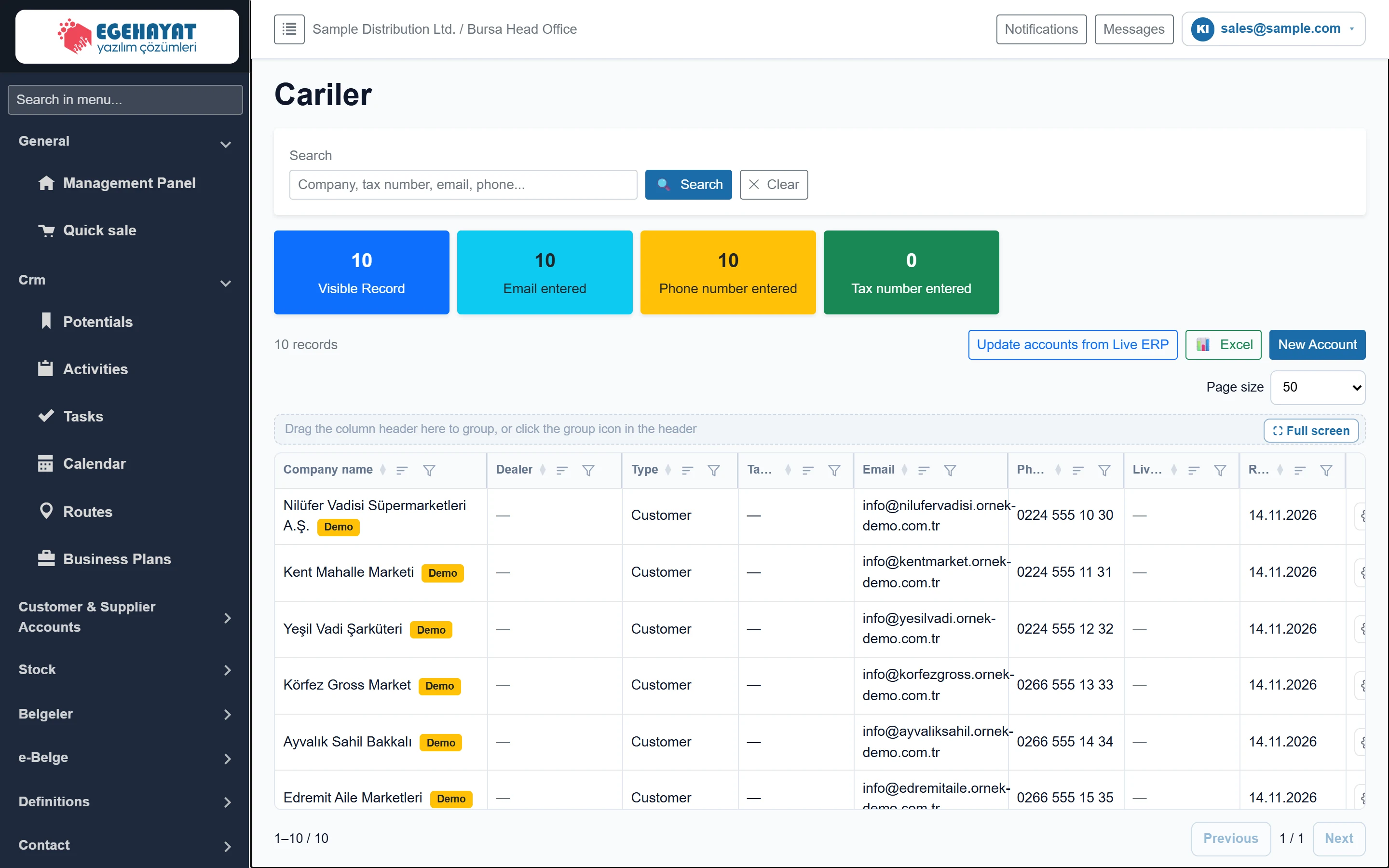
- 1Search Search by company name, code, tax no., e-mail or phone.
- 2Counters Visible records; number of cards with e-mail, phone and tax no. entered.
- 3Update from ERP Pulls accounts from the ERP if an ERP integration is enabled.
- 4📊 Excel Exports the visible list to Excel.
- 5New Account Opens a new account card.
- 6Actions Edit, Copy, Delete.
The search box looks in company name, code, tax number, e-mail and phone. The coloured cards show visible records and how many cards have e-mail, phone and tax number; use them to complete missing data.
A button such as Live ERP'den carileri güncelle (update accounts from ERP) appears only if an ERP integration is enabled. The row menu offers Edit, Copy (new card with the same data) and Delete.
Account card
Click New Account or Edit. The card consists of collapsible sections; Identity and Commercial start open. Sector demo cards show a yellow «Demo» note at the top; they are never sent to the ERP.
Identity
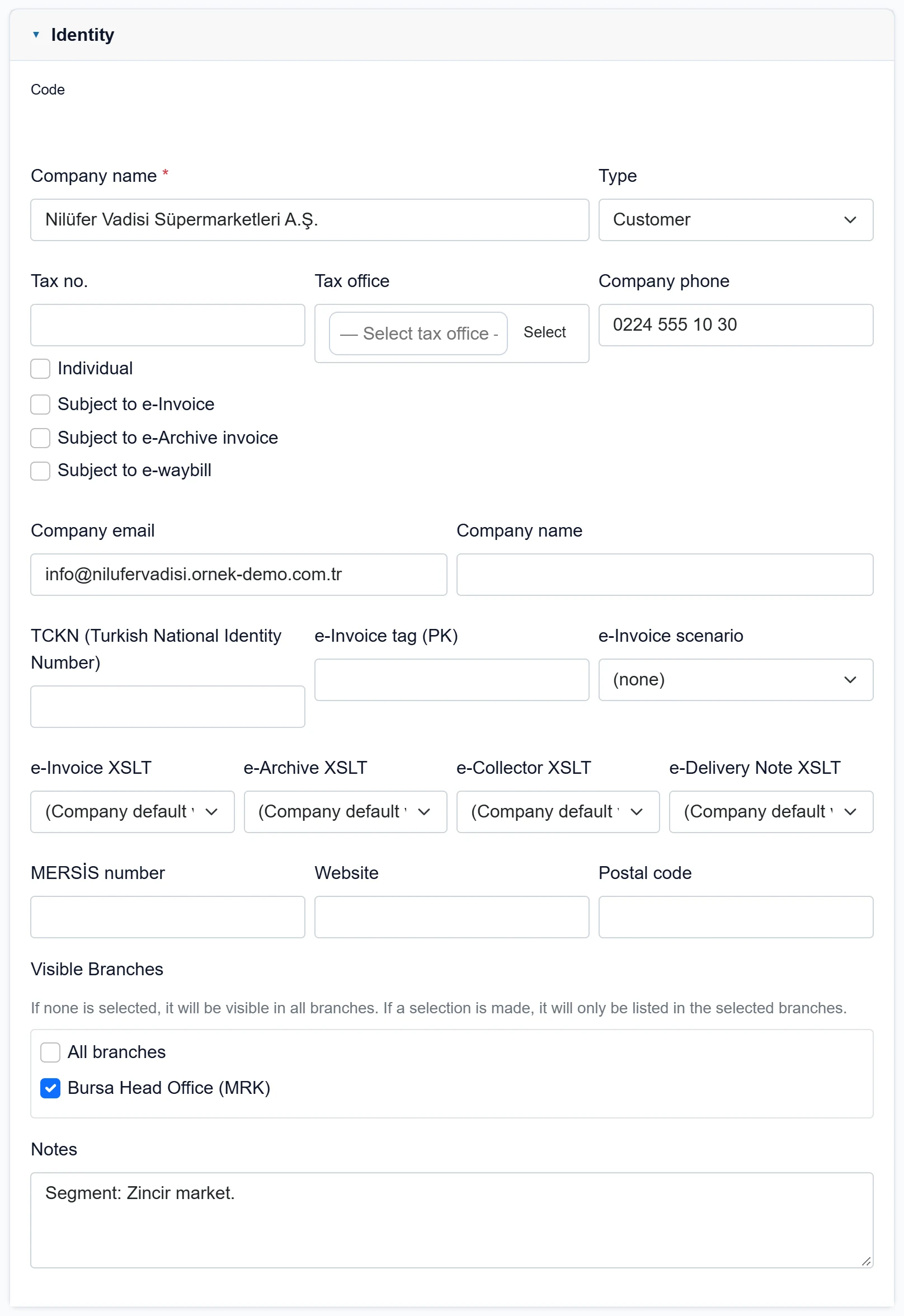
| Field | Sign in | Description |
|---|---|---|
| Code | Text | Account code. Generated from the code template if one is defined; otherwise it can stay empty. |
| Company name required | Text | Name of the account card. Required. |
| Type | Choice list | Customer, Supplier, Customer + Supplier or Agency. Affects account selection in lists and documents. Options: Customer · Supplier · Customer + Supplier · Agent |
| Tax no. | Text | 10-digit tax ID or 11-digit national ID. If invalid, saving is blocked with «Vergi no hatalı.». |
| Individual | Checkbox | Private individual; the national ID is used on e-documents. |
| Subject to e-Invoice | Checkbox | The account is an e-Invoice user; sales invoices are issued as e-Invoices. |
| Subject to e-Archive invoice | Checkbox | Invoices are issued as e-Archive invoices. |
| Subject to e-waybill | Checkbox | Delivery notes are sent as e-Delivery notes. |
| Tax office | Text | Chosen from the tax office list with «Select». Placeholder: «— Select tax office —» |
| Company phone | Text | The company's general phone number. |
| Company email | The company's general e-mail address; an invalid format blocks saving. | |
| Company name | Text | Official trade name shown on invoices; if empty, the company name is used. |
| TCKN (Turkish National Identity Number) | Text | National ID number for private individuals. |
| e-Invoice tag (PK) | Text | The recipient's GİB mailbox alias (urn:mail:...). |
| e-Invoice scenario | Choice list | e-Invoice scenario such as Basic, Commercial, Export; if empty, the company setting applies. |
| e-Invoice XSLT | Choice list | e-Invoice layout template for this account; if empty, the company default. |
| e-Archive XSLT | Choice list | e-Archive layout template for this account. |
| e-Collector XSLT | Choice list | e-Producer receipt layout template for this account. |
| e-Delivery Note XSLT | Choice list | e-Delivery note layout template for this account. |
| MERSİS number | Text | 16-digit MERSİS number (optional). |
| Website | Text | The company's website. |
| Postal code | Text | Postal code of the company address. |
| Visible Branches | Checkbox | Which workplaces list this card. If none is selected it is visible in all branches. |
| All branches | Checkbox | If ticked, the card is visible in all workplaces. |
| Bursa Head Office (MRK) | Checkbox | A workplace of the company; if ticked the card is listed there. |
| Notes | Long text | Free notes about the account. |
The GİB user check button (in companies with e-document integration) queries whether the account is an e-Invoice user by its tax number.
Commercial
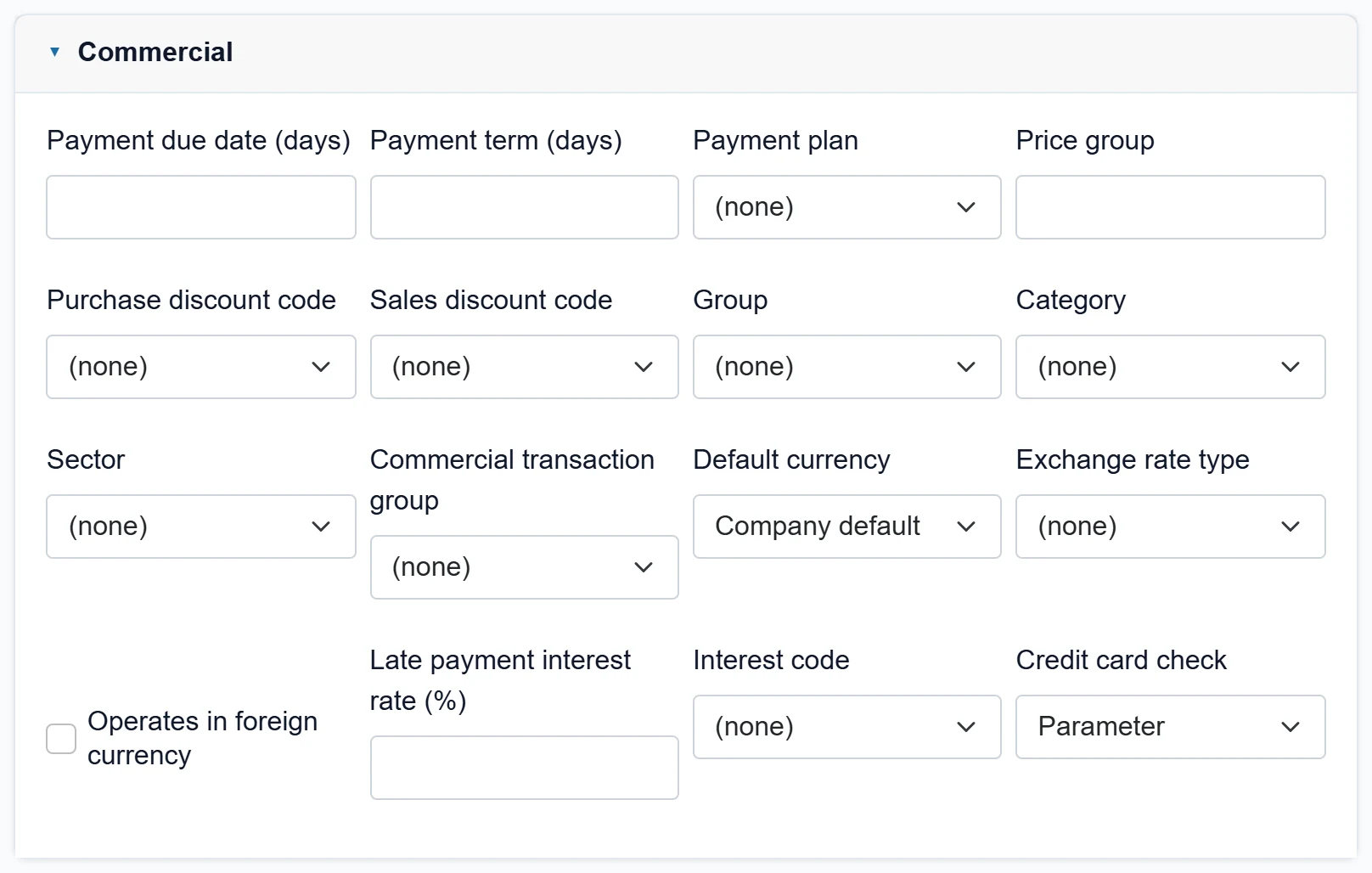
| Field | Sign in | Description |
|---|---|---|
| Payment due date (days) | Text | Default payment term in days on documents. |
| Payment term (days) | Text | Grace days added to the payment term. |
| Payment plan | Choice list | A plan from Definitions → Payment plans; instalments on documents follow it. |
| Price group | Text | Price group this account uses in the item price list. |
| Purchase discount code | Choice list | Discount definition applied to purchase documents. |
| Sales discount code | Choice list | Discount definition applied to sales documents. |
| Group | Choice list | Group from the account catalogues; for grouping in reports. |
| Category | Choice list | Category from the account catalogues. |
| Sector | Choice list | Sector from the account catalogues. |
| Commercial transaction group | Choice list | Trading group from the account catalogues (for accounting separation). |
| Default currency | Choice list | Currency suggested for this account on documents; if empty, the company default. Options: Company default · TRY · USD · EUR · GBP |
| Exchange rate type | Choice list | Buying or selling rate on foreign-currency documents. Options: (none) · Buying · Selling |
| Operates in foreign currency | Checkbox | If ticked, the account is kept in foreign currency. |
| Late payment interest rate (%) | Text | Monthly interest rate applied to late payments. |
| Interest code | Choice list | A definition from Definitions → Interest rates. |
| Credit card check | Choice list | Whether card details are required on sales; «(parameter)» follows the company setting. Options: Parameter · No · Required · According to parameter |
Logistics
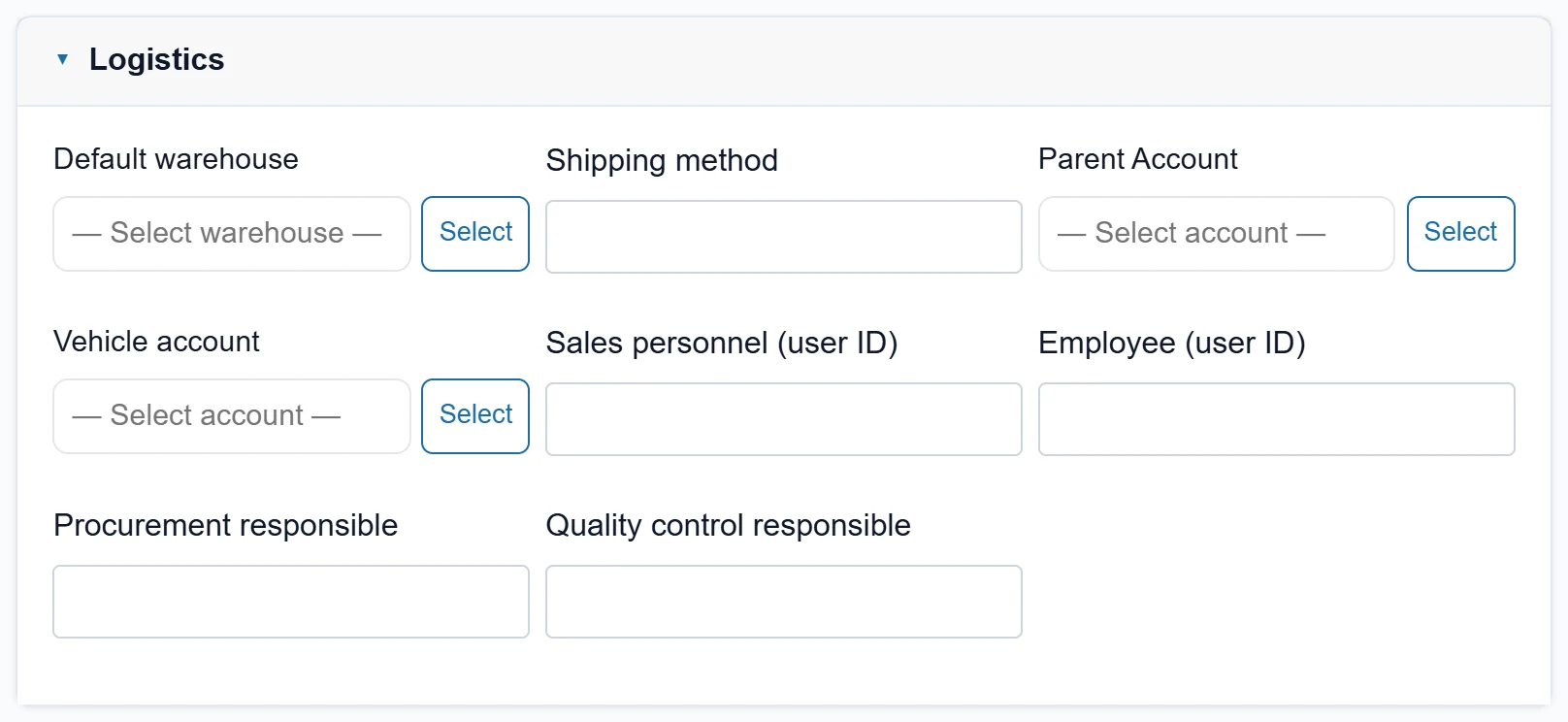
| Field | Sign in | Description |
|---|---|---|
| Default warehouse | Text | Warehouse suggested on this account's documents. Placeholder: «— Select warehouse —» |
| Shipping method | Text | Free text such as courier, own vehicle etc. |
| Parent Account | Text | The parent company (e.g. the chain's head office). Placeholder: «— Select account —» |
| Vehicle account | Text | Intermediary company through which the sale is made. Placeholder: «— Select account —» |
| Sales personnel (user ID) | Text | ID of the sales user responsible for the account. |
| Employee (user ID) | Text | ID of another user handling the account. |
| Procurement responsible | Text | Name of the purchasing contact at the account. |
| Quality control responsible | Text | Name of the quality control contact at the account. |
Risk
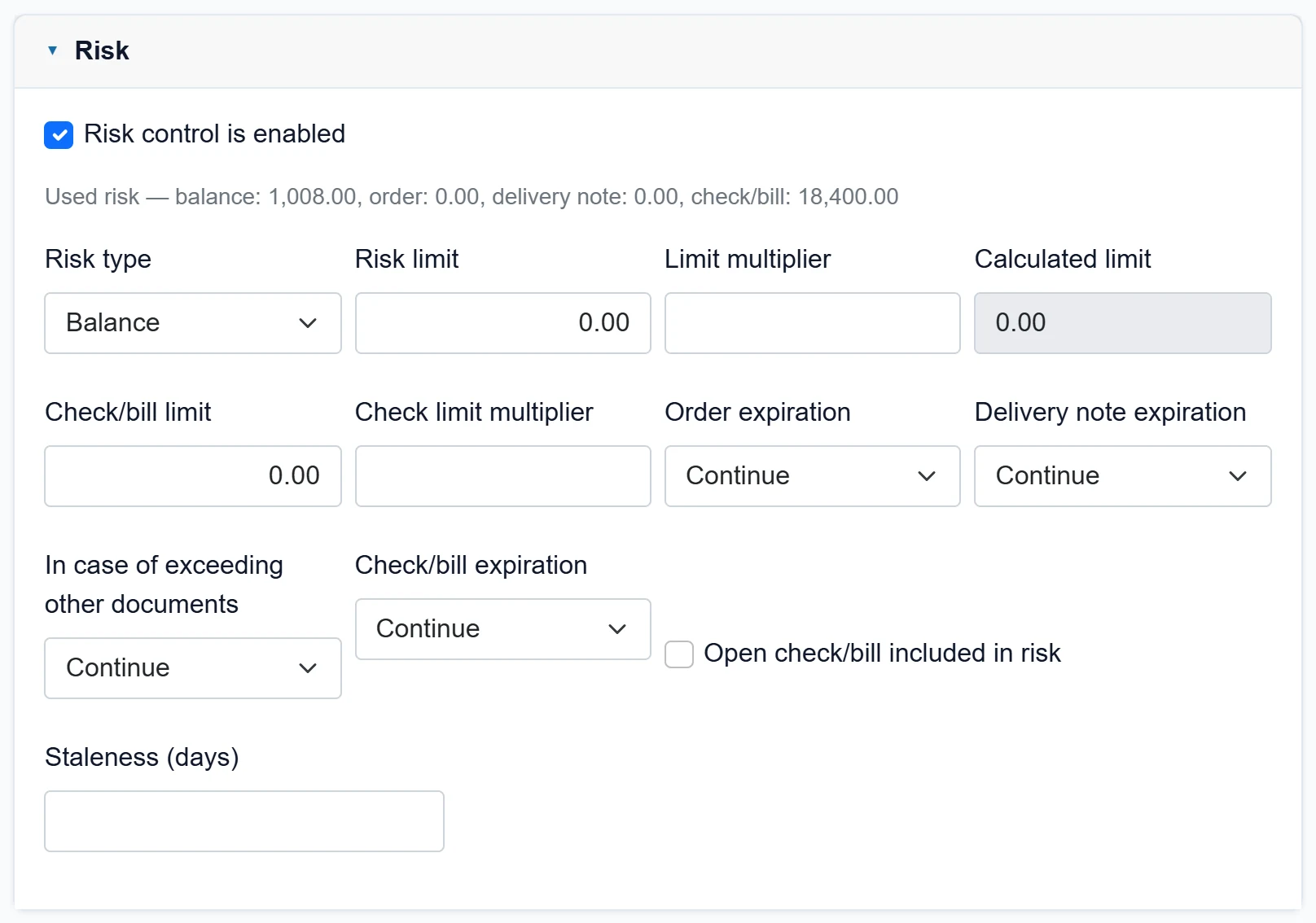
| Field | Sign in | Description |
|---|---|---|
| Risk control is enabled | Checkbox | When ticked, the limit fields open and risk is checked on documents. |
| Risk type | Choice list | What counts as risk: balance only, or balance plus open delivery notes / orders. Options: Balance · Balance + delivery note · Balance + order · Balance + order + delivery note |
| Risk limit | Text | Maximum amount the account may work with. |
| Limit multiplier | Text | Multiplied by the risk limit to get the calculated limit (e.g. 1.2). |
| Calculated limit | Text | Risk limit × limit multiplier; calculated automatically. |
| Check/bill limit | Text | Upper limit for the account's open cheques / notes. |
| Check limit multiplier | Text | Factor multiplied by the cheque / note limit. |
| Order expiration | Choice list | On orders when the limit is exceeded: Continue, Warn or Block. Options: Continue · Warning · Block |
| Delivery note expiration | Choice list | What happens on delivery notes when the limit is exceeded. Options: Continue · Warning · Block |
| In case of exceeding other documents | Choice list | What happens on invoices and other documents when the limit is exceeded. Options: Continue · Warning · Block |
| Check/bill expiration | Choice list | What happens when the cheque / note limit is exceeded. Options: Continue · Warning · Block |
| Open check/bill included in risk | Checkbox | If ticked, uncollected cheques / notes are added to the risk. |
| Staleness (days) | Text | A warning is given for accounts inactive for this many days. |
Address
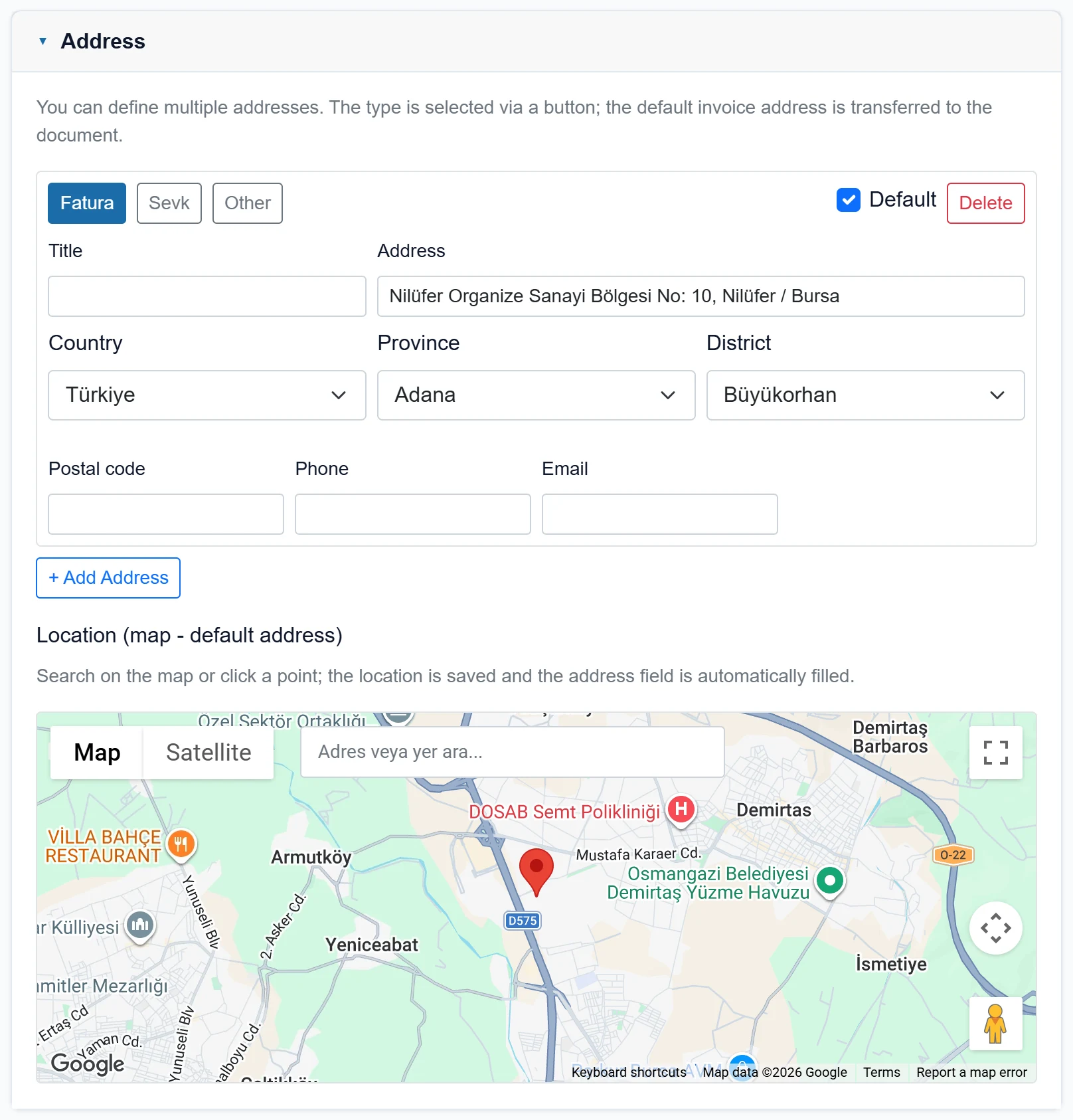
| Field | Sign in | Description |
|---|---|---|
| Default | Checkbox | The default invoice address is copied to documents. |
| Title | Text | Short name of the address (e.g. «Main warehouse»). |
| Address | Text | District, street, number. |
| Country | Choice list | Choosing the country fills the province list. |
| Province | Choice list | Choosing the province fills the district list. |
| District | Choice list | Districts of the selected province. |
| Postal code | Text | Postal code of the address. |
| Phone | Text | Phone for this address. |
| Text | E-mail for this address. | |
| Location (map - default address) | Text | Search or click on the map; the location is saved and the address field is filled. Used for route planning. Placeholder: «Adres veya yer ara...» |
You can add several addresses; the type button selects Invoice, Shipping or Other, and the default invoice address is copied to documents. Without a Google Maps key in the company, a note replaces the map.
Contacts
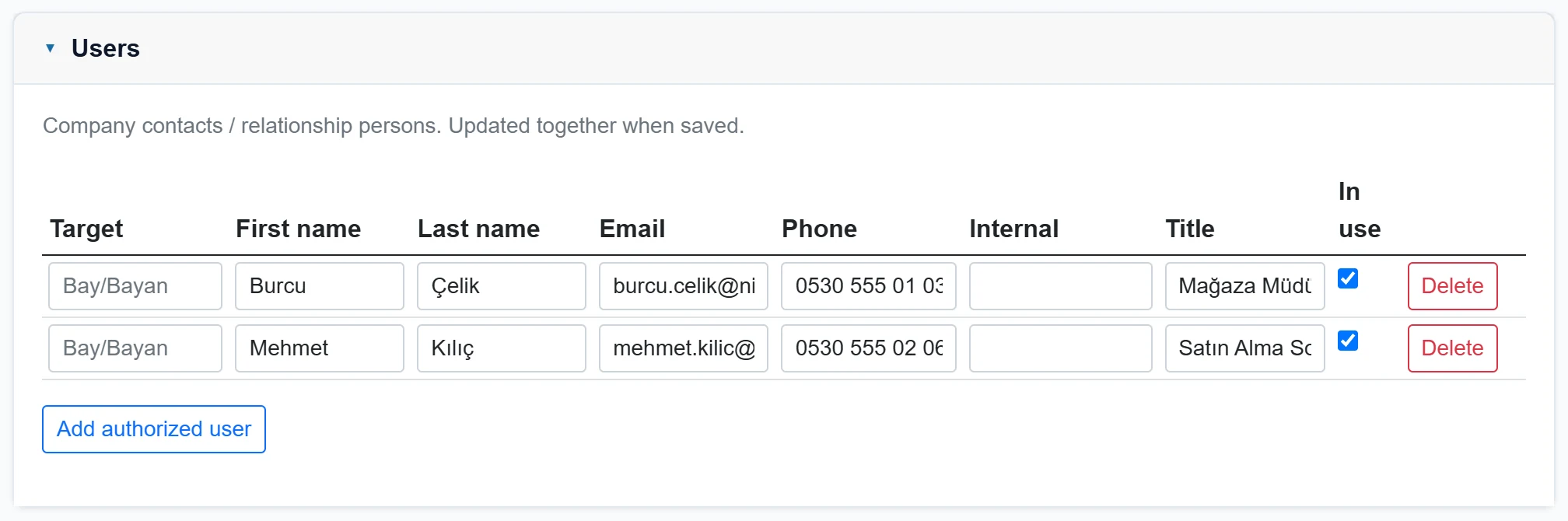
- 1Contacts table Salutation, first name, surname, e-mail, phone, extension, title; edited in the row.
- 2Add authorized user Adds a new contact row.
Vehicles
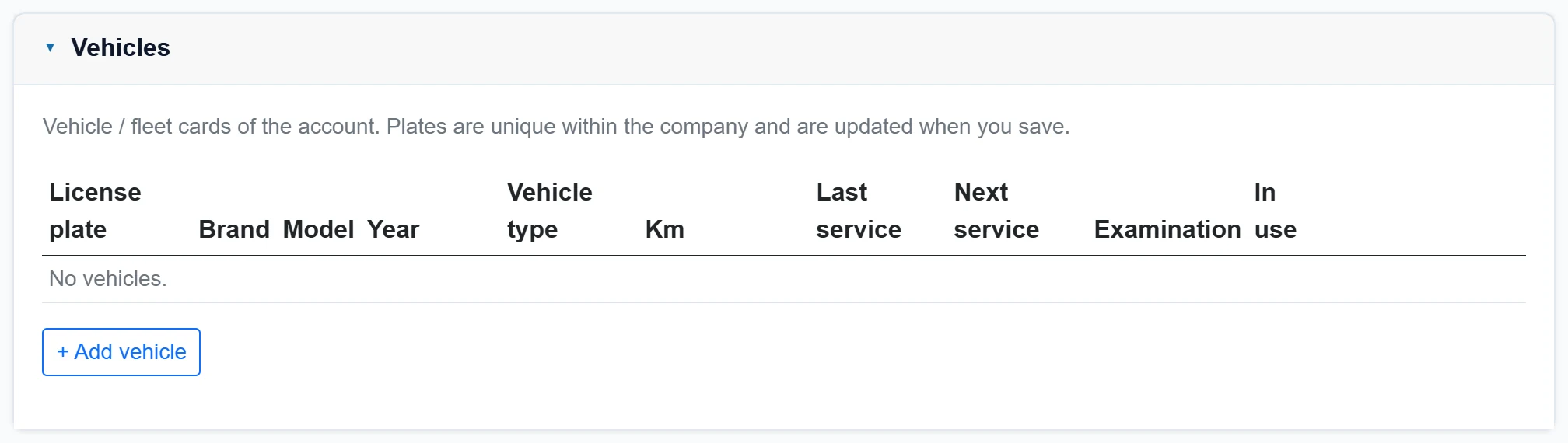
- 1Vehicles table Plate, make, model, year, type, mileage, service and inspection dates.
- 2+ Add vehicle Adds a new vehicle row; the plate must be unique in the company.
Detail on a vehicle row opens chassis no., insurance and warranty end dates and a note.
Opening a new account: step by step
- Click New Account.
- In Identity enter the company name (required) and type; fill in tax number, tax office and contact details.
- If you use e-documents, tick the matching boxes.
- In Commercial set payment terms, price group and group / category / sector from the catalogues.
- In Address add an address with + Add address and mark the location on the map (needed for routes).
- Add contact persons under Contacts.
- Click Save.
To open a similar company, start with Copy in the list; commercial and address details are pre-filled, just change the differences.
Delete removes the card from the list; linked activities, tasks and documents can no longer be found by this account. Rather than deleting an inactive account, note its status under Notes.
Common messages
| Message | Cause | Solution |
|---|---|---|
| Firma adı gereklidir (company name required) | The company name is empty. | Fill in the field. |
| Geçerli bir e-posta adresi girin (enter a valid e-mail) | The e-mail format is wrong. | Correct it or leave it empty. |
| Invalid tax number. | The tax ID / national ID check failed. | Check the 10-digit tax ID or 11-digit national ID. |
| There are missing or incorrect fields in the form. Please check the red warnings. | Validation error. | Correct the red fields. |
| A record with the same attributes already exists; you cannot open a card this way. Continue with "Assign new serial". | The code template produced an existing code. | Request a new serial in the code field. |
| Registration cannot be performed without selecting a company and workplace. Please log out and log in again. | The session has no company / workplace. | Sign out and sign in again. |
| Risk information could not be saved. | The risk section could not be saved. | Check the values and save again. |
| An error occurred during saving. Please check the information and try again. | Unexpected error. | Try again; report it if it persists. |
| Google Maps key missing. Enter it in the Google Maps section of the company card. | No map key defined for the company. | Enter the key under Settings → Control panel. |