
 AsyaTicari
 AsyaRestoran
 AsyaOtel
 AsyaCrm
 AsyaKlinik
 AsyaSpor
 AsyaSSH
 AsyaEmlak
 AsyaFilo
 AsyaPuantaj
 AsyaİSG
 AsyaİHD
 Kolay Öğren
AsyaCrm · Settings
Users
List of company users; creating a user, admin / active status, trackable workplaces, roles and password reset.
The Users screen lists everyone who can sign in to AsyaCrm in your company. Here you create users, set their roles and the workplaces they can see, and reset passwords when needed. The screen is available to users with the user management permission.
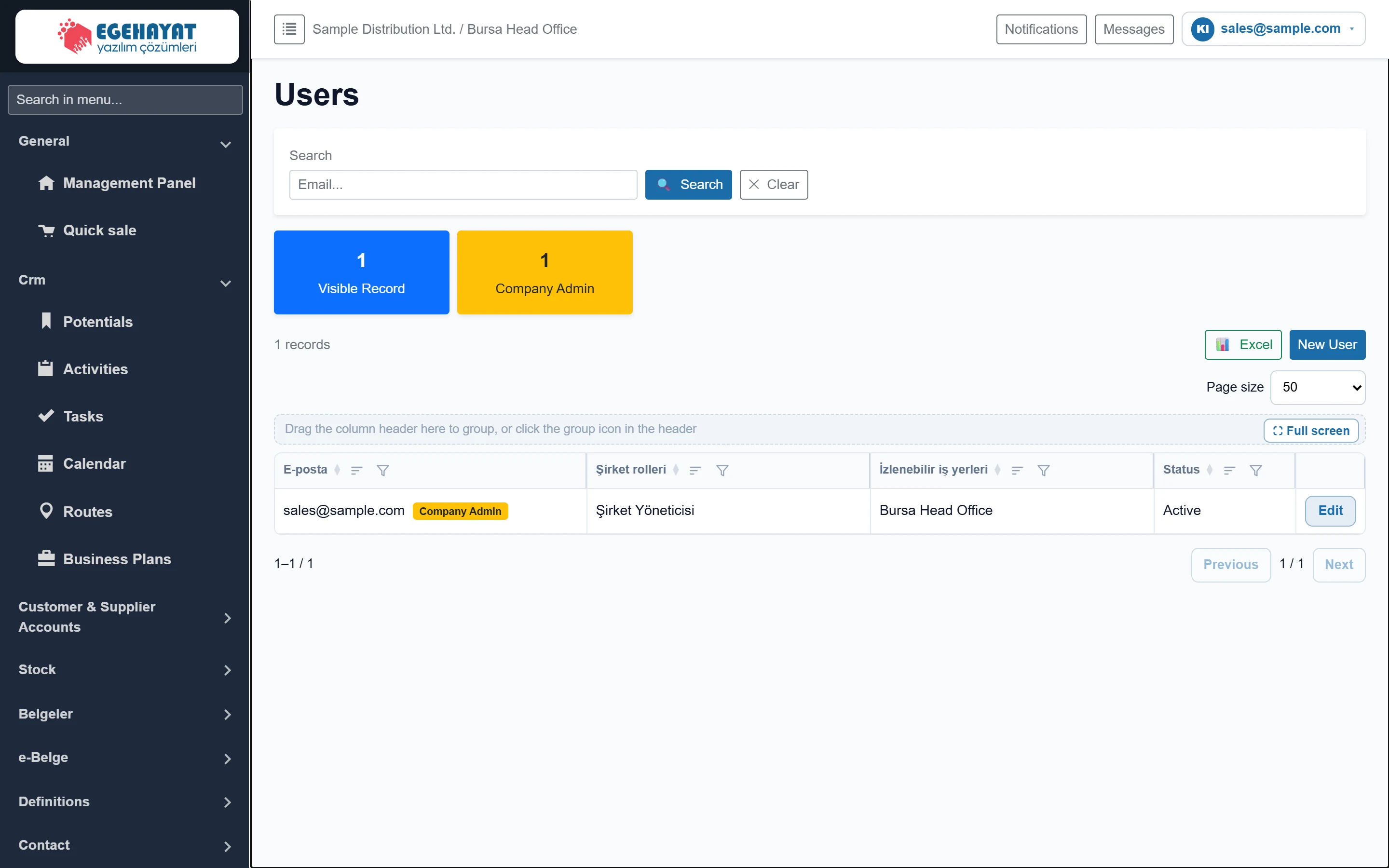
- 1Search Filters by part of the e-mail.
- 2Counters Number of visible users and company admins.
- 3📊 Excel Downloads the list as an Excel file.
- 4New User Opens the new user form.
- 5User row E-mail, roles, visible workplaces and status.
- 6Edit Edits the user.
The list shows the user's e-mail (admins have a yellow Company Admin badge), roles, trackable workplaces and status (Active / Inactive). The counters at the top are the visible users and company admins. Excel downloads the list.
Creating a user
New User opens the form.
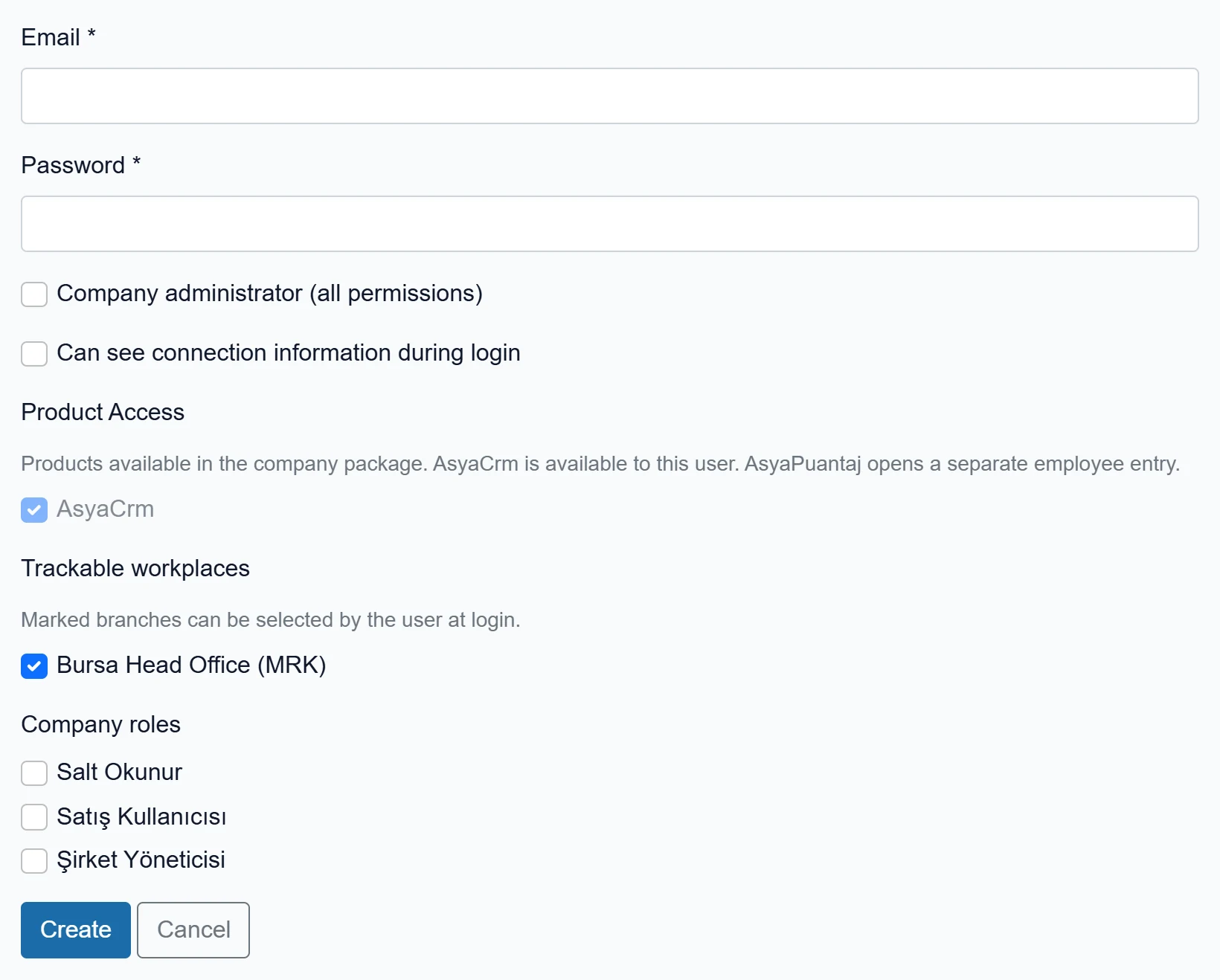
- 1Create Creates the user and returns to the list.
| Field | Sign in | Description |
|---|---|---|
| Email required | User's sign-in e-mail. If already registered in another company, the same account is linked to this company too. | |
| Password required | Text | Initial password: at least 8 characters with upper-case, lower-case letters and a digit. |
| Company administrator (all permissions) | Checkbox | When ticked, the user has all menu and CRUD permissions; the permission matrix does not apply. |
| Can see connection information during login | Checkbox | Can open the database connection panel on the sign-in screen. Give only to the technical contact. |
| Product Access | Checkbox | Products in the company package. AsyaCrm is open to every user; AsyaPuantaj, if present, is ticked separately. |
| AsyaCrm | Checkbox | This product; open to every user, cannot be changed. |
| Trackable workplaces | Checkbox | Branches the user can choose at sign-in and whose data they see. The first workplace is pre-ticked. |
| Bursa Head Office (MRK) | Checkbox | A workplace of the company. When ticked, the user can enter this branch and see its data. |
| Company roles | Checkbox | A role is a ready-made set of menu permissions; several roles can be selected. |
| Salt Okunur | Checkbox | Built-in role: only views Crm records and reports. |
| Satış Kullanıcısı | Checkbox | Built-in role: views, creates, updates and deletes accounts, leads, quotes, activities, tasks, routes and work plans; views reports. |
| Şirket Yöneticisi | Checkbox | Built-in role: all menu and CRUD permissions. |
- Enter the E-mail and Password.
- If the user will manage everything, tick Company administrator (all permissions); otherwise choose one or more Company roles.
- Under Trackable workplaces, tick the branches the user may enter. The first workplace is pre-ticked and becomes the user's default workplace.
- Press Create. On success you return to the list.
To grant individual menu permissions instead of a role, open Permissions after creating the user, select the user and edit the matrix.
The number of sessions open at the same time is limited by the company's licensed user count (Subscription cart → User seats). Instead of deleting a leaving employee, remove the Active tick.
Editing a user
Edit at the end of the row opens the user's card.
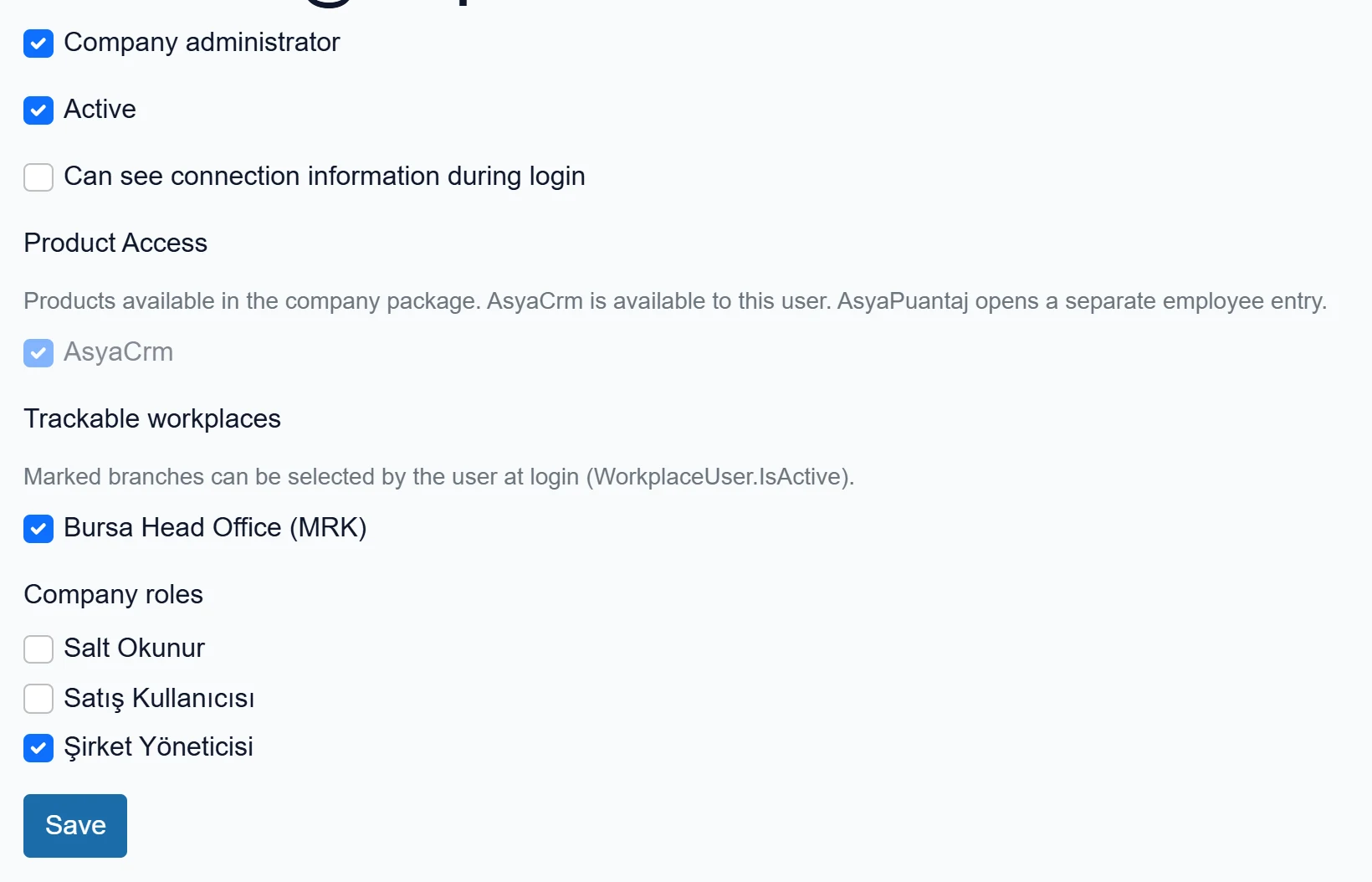
- 1Save Saves the changes; permissions take effect at the next sign-in.
| Field | Sign in | Description |
|---|---|---|
| Company administrator | Checkbox | All permissions. If removed, the user is subject to the permission matrix. |
| Active | Checkbox | A user without this tick cannot sign in; their records are kept. |
| Can see connection information during login | Checkbox | Can open the database connection panel on the sign-in screen. |
| Product Access | Checkbox | Products in the company package; AsyaCrm is open to every user. |
| AsyaCrm | Checkbox | This product; open to every user, cannot be changed. |
| Trackable workplaces | Checkbox | Branches the user can choose at sign-in. |
| Bursa Head Office (MRK) | Checkbox | A workplace of the company. When ticked, the user can enter this branch and see its data. |
| Company roles | Checkbox | Roles assigned to the user. |
| Salt Okunur | Checkbox | Built-in role: only views Crm records and reports. |
| Satış Kullanıcısı | Checkbox | Built-in role: views, creates, updates and deletes accounts, leads, quotes, activities, tasks, routes and work plans; views reports. |
| Şirket Yöneticisi | Checkbox | Built-in role: all menu and CRUD permissions. |
After changing, press Save. The message says the user was updated and that permission changes take effect at the next sign-in: if the user has an open session, the new permissions apply after they sign out and in again.
Resetting a password
The Reset password section is at the bottom of the same card.
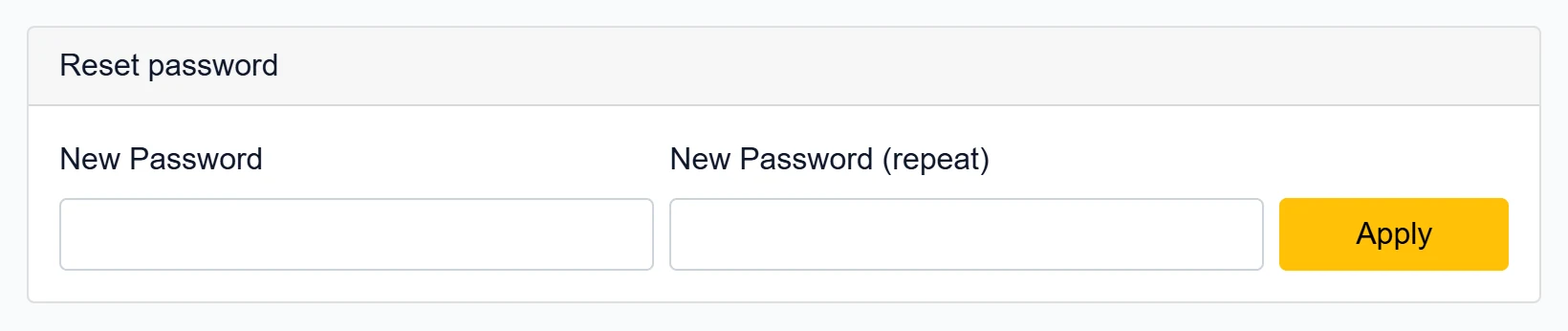
- 1Apply Changes the password immediately.
| Field | Sign in | Description |
|---|---|---|
| New Password | Text | User's new password: at least 8 characters with upper-case, lower-case letters and a digit. |
| New Password (repeat) | Text | Type the same password again. |
- Type the new password identically in both boxes.
- Press Apply. A "password reset" message appears; from now on the user signs in with the new password.
How complex the password must be depends on the company's Password rule setting (in AsyaTicari Settings → Control panel, or the company details in Platform Admin). Default: at least 8 characters with upper case, lower case and a digit. With Simple, at least 4 characters are enough.
Common messages
| Message | Cause | Solution |
|---|---|---|
| Kullanıcı zaten bu şirkete kayıtlı. (User already registered.) | A user with this e-mail exists in the company. | Find the user in the list and open it with Edit. |
| At least 8 characters with upper-case, lower-case letters and a digit. | The password does not meet the rule. | Enter a password of at least 8 characters with upper/lower case and a digit. |
| The password must contain an upper-case letter. | No upper-case letter. | Add an upper-case letter. |
| Passwords do not match. | The two boxes differ when resetting. | Type the same password in both boxes. |
| Kullanıcı bulunamadı. (User not found.) | The user was deleted or removed meanwhile. | Reload the list. |
| User quota is full. | (At sign-in) open sessions reached the licensed user count. | Close unused sessions or increase the user count in the Subscription cart. |