
 AsyaTicari
 AsyaRestoran
 AsyaOtel
 AsyaCrm
 AsyaKlinik
 AsyaSpor
 AsyaSSH
 AsyaEmlak
 AsyaFilo
 AsyaPuantaj
 AsyaİSG
 AsyaİHD
 Kolay Öğren
AsyaCrm · Crm
Activities
List and kanban of visits, calls, meetings and other contacts with accounts and leads; the activity form (general, descriptions, details, attachments), checklist and organisation tab.
Record every contact with accounts and leads (visit, phone call, shelf check, meeting …) on the Activities screen and follow its status. Activities appear in the calendar on their planned date and are used in reports and checklists.
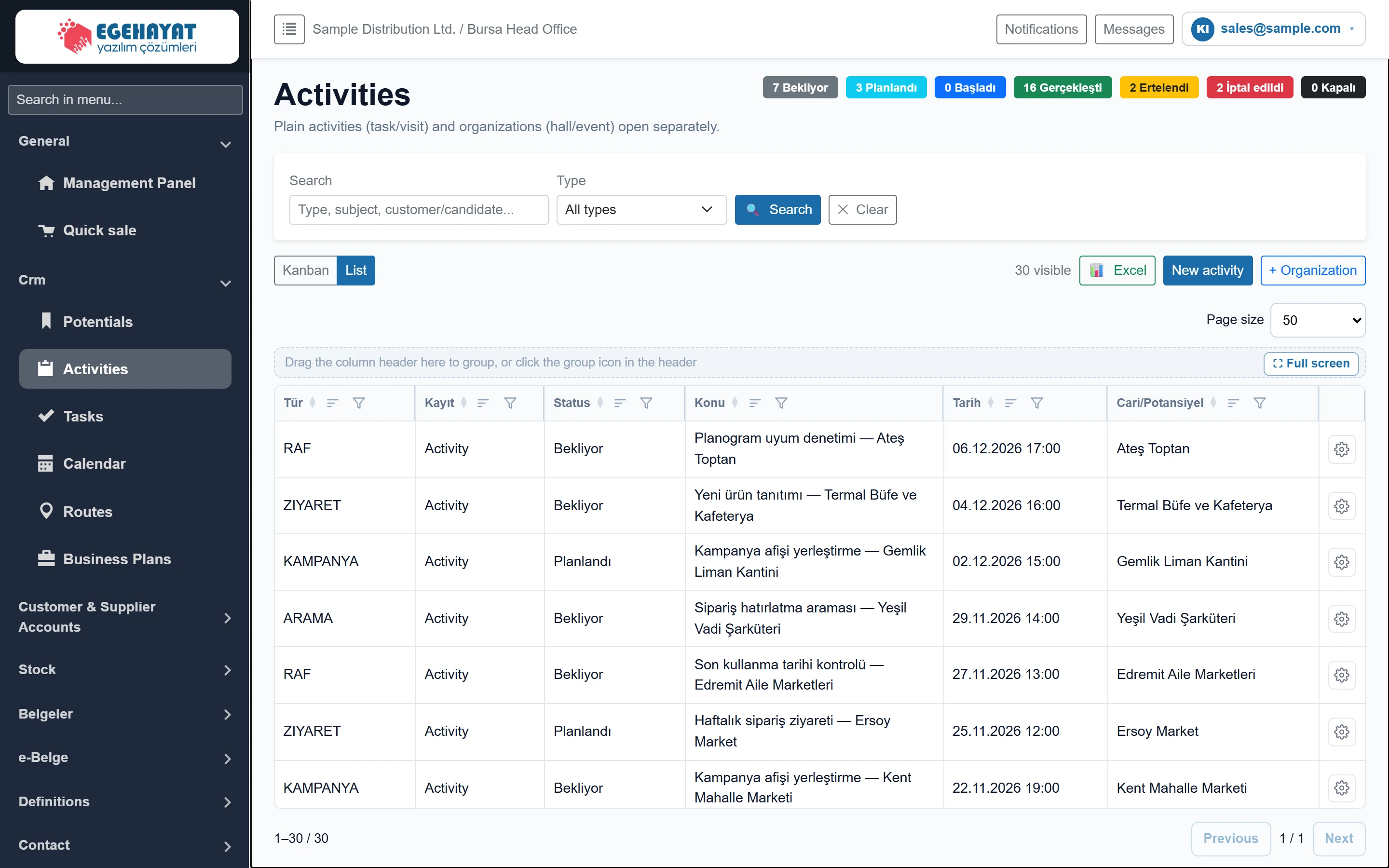
- 1Status counts Number of filtered activities per status.
- 2Filter Search by type, subject, account / lead and filter by type.
- 3View Kanban (columns by status) or list.
- 4📊 Excel Exports the visible activities to Excel.
- 5New activity Opens a new activity (visit, call, meeting …).
- 6+ Organization Opens a venue / event organisation (companies with the organisation feature).
- 7Actions Edit, Delete.
The coloured badges next to the title count the filtered activities per status: Waiting, Planned, Started, Completed, Postponed, Cancelled, Closed. Status names can be changed under Settings → Activity status labels.
Search and filter

- 1🔍 Search Applies the filter.
- 2✕ Clear Clears the filter.
| Field | Sign in | Description |
|---|---|---|
| Search | Text | Part of the type, subject, description, account or lead name. Placeholder: «Type, subject, customer/candidate...» |
| Type | Choice list | Only the selected activity type (e.g. ZIYARET, ARAMA). «All types» removes the filter. Options: All types · ARAMA · KAMPANYA · RAF · ZIYARET |
Kanban view
Click Kanban to arrange activities in status columns.
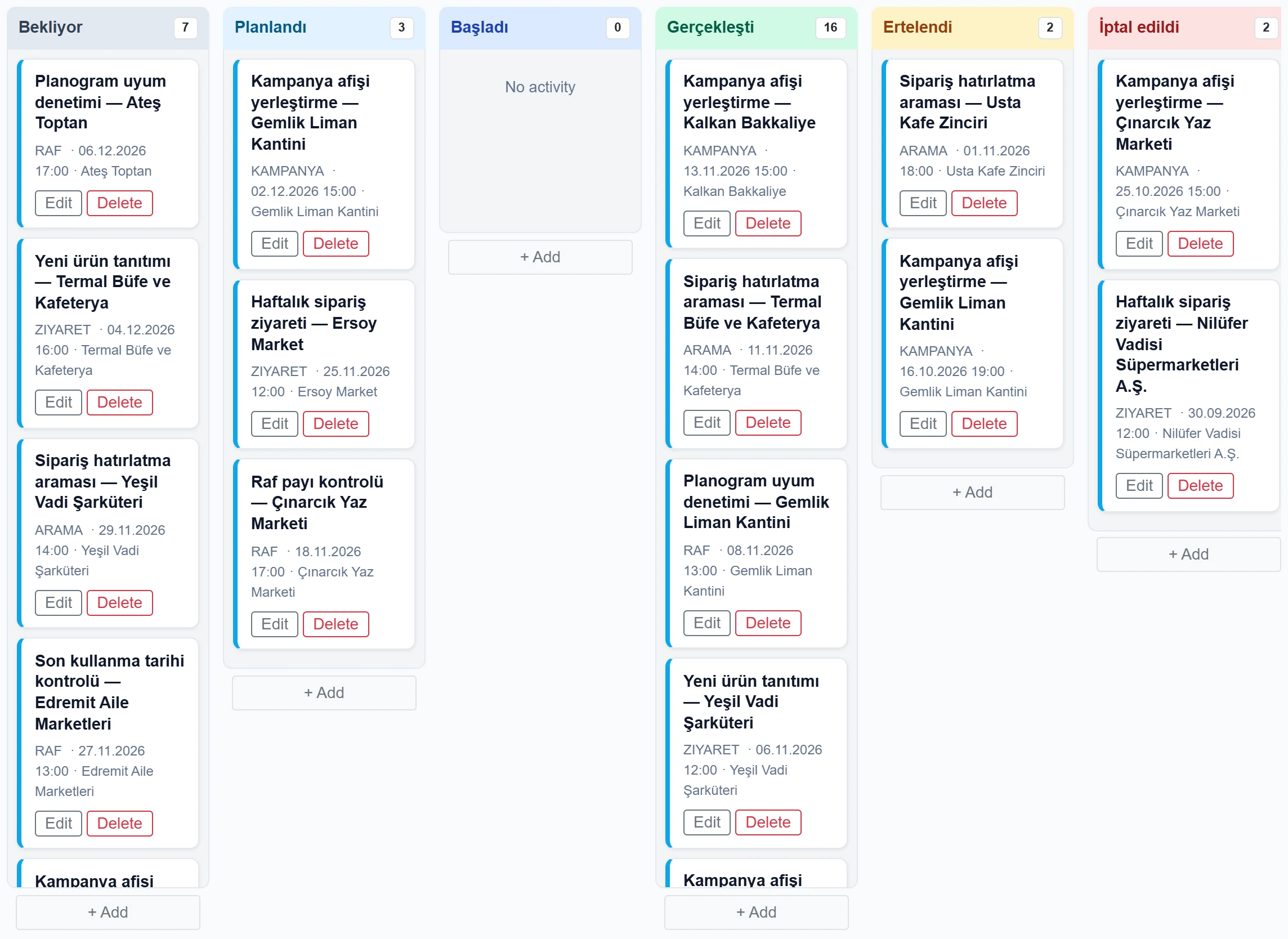
- 1Status column The column heading shows the status name and the number of activities in it.
- 2Activity card Subject, type, date and account. Drag the card to another column to change its status.
- 3Edit Opens the activity form.
- 4+ Add Opens a new activity with this status.
Drag a card to another column to change the activity's status. + Add under a column opens a new activity with that status.
Activity form
Click + New activity or Edit in the row menu. The form has four tabs; companies with the organisation feature get a fifth tab, Organisation.
General
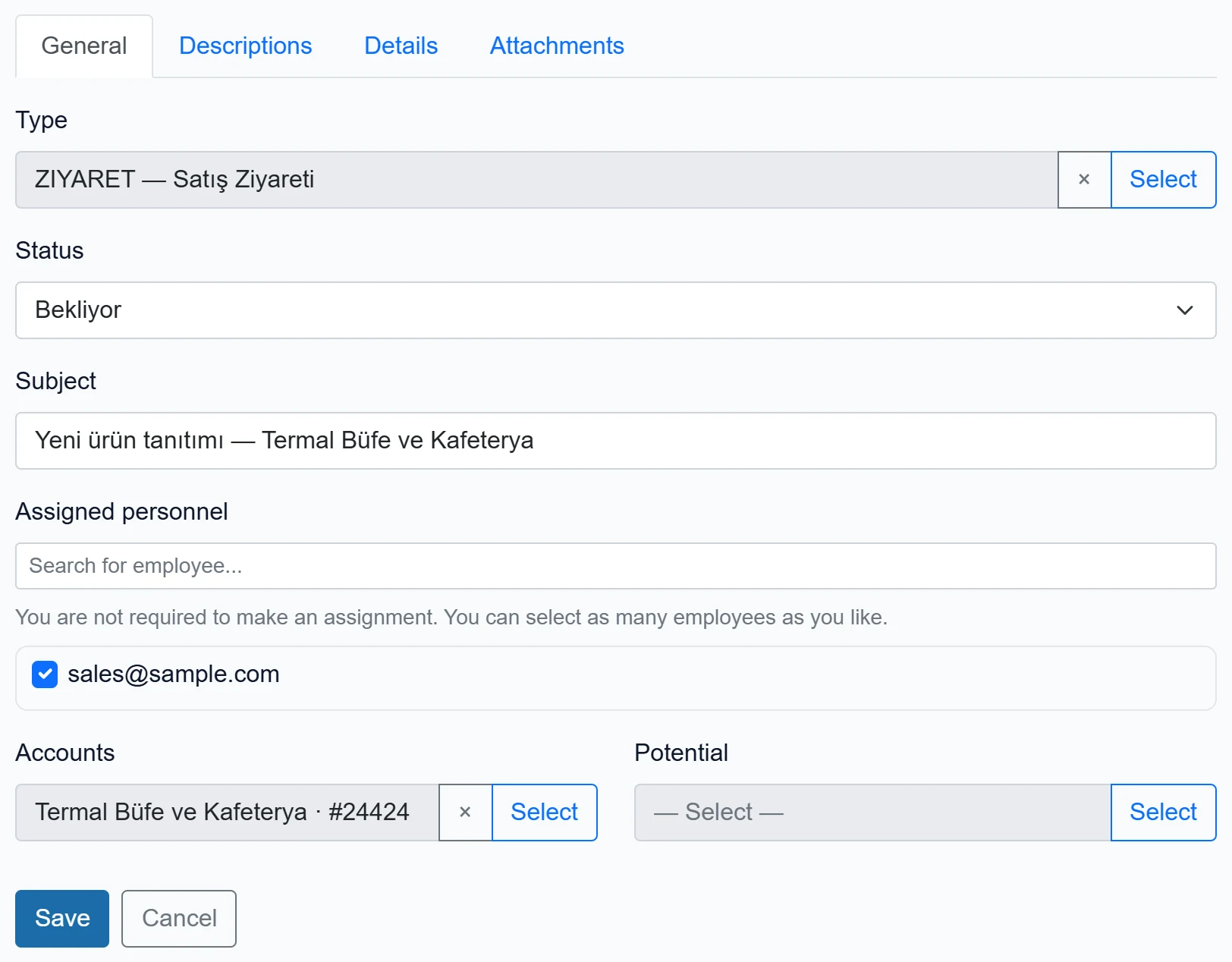
- 1General Type, status, subject, staff and account / lead.
- 2Descriptions Description and, depending on status, a postponement / cancellation / result note.
- 3Details Due, planned and actual dates / durations.
- 4Attachments File attachments (only on a saved activity).
- 5Select Selects a type from the list.
- 6Save Saves the activity and the checklist answers.
| Field | Sign in | Description |
|---|---|---|
| Type | Text | Activity type (activity types from Type Definitions). Pick it with «Select»; the checklist linked to the type opens below the form. Placeholder: «— Select —» |
| Status | Choice list | Waiting, Planned, Started, Completed, Postponed, Cancelled, Closed. Choosing Completed sets the actual date to now. Options: Bekliyor · Planlandı · Başladı · Gerçekleşti · Ertelendi · İptal edildi · Kapalı |
| Subject | Text | Short title (e.g. «Weekly order visit — Kent Mahalle Marketi»). If empty, the type is shown in the list. |
| Assigned personnel | Text | Users responsible for the activity; several can be chosen, optional. Search by name in the box above. Placeholder: «Search for employee...» |
| sales@sample.com | Checkbox | A user of the company; ticked users are assigned to the activity. |
| Accounts | Text | The account the activity is for. Choose either an account or a lead. Placeholder: «— Select —» |
| Potential | Text | A lead that is not an account yet. Placeholder: «— Select —» |
Descriptions
| Field | Sign in | Description |
|---|---|---|
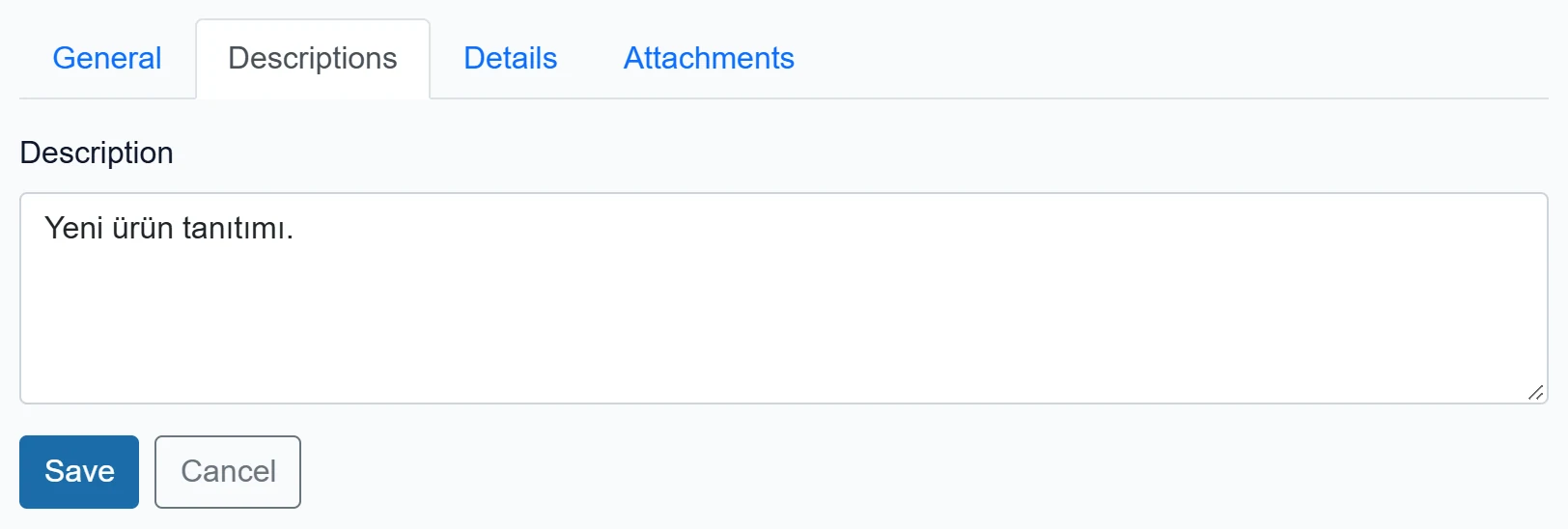
| Description | Long text | Details of the activity; shown in preview / print. |
The postponement, cancellation and result boxes appear only while the matching status is selected.
Details
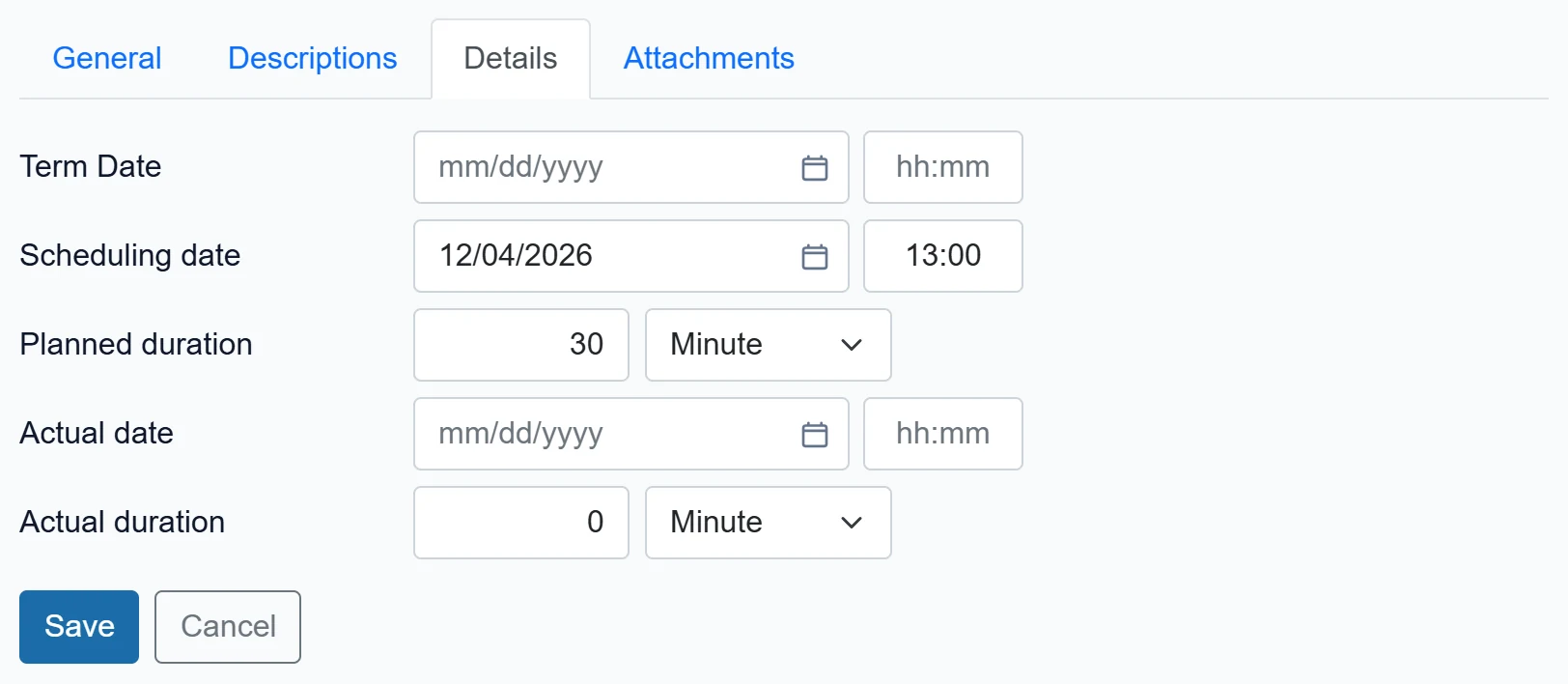
| Field | Sign in | Description |
|---|---|---|
| Term Date | Text | Date and time by which the work must be finished. Placeholder: «mm/dd/yyyy» |
| Scheduling date | Text | Planned date and time; the activity appears on this day in the calendar. Placeholder: «mm/dd/yyyy» |
| Planned duration | Text | Estimated duration (hours : minutes). |
| Actual date | Text | The date it was actually done; filled automatically when the status becomes Completed. Placeholder: «mm/dd/yyyy» |
| Actual duration | Text | Time actually spent. |
Attachments
The Attachments tab appears after the activity has been saved.
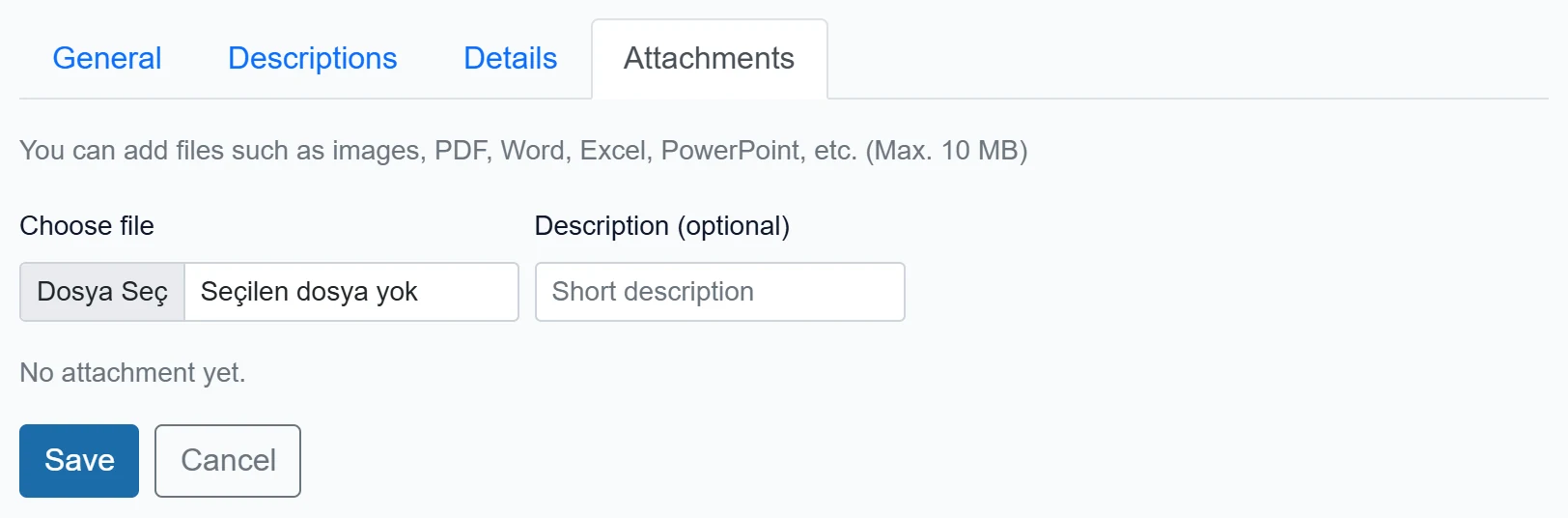
| Field | Sign in | Description |
|---|---|---|
| Choose file | Text | Image, PDF, Word, Excel, PowerPoint etc.; up to 10 MB. Uploaded as soon as selected. |
| Description (optional) | Text | If typed before choosing the file, it is saved as the attachment's description. Placeholder: «Short description» |
Inspect opens an uploaded file, Edit changes its name and description, Delete removes it.
Checklist
If a question set is linked to the activity type under Definitions → Question Sets, its questions appear below a saved activity.
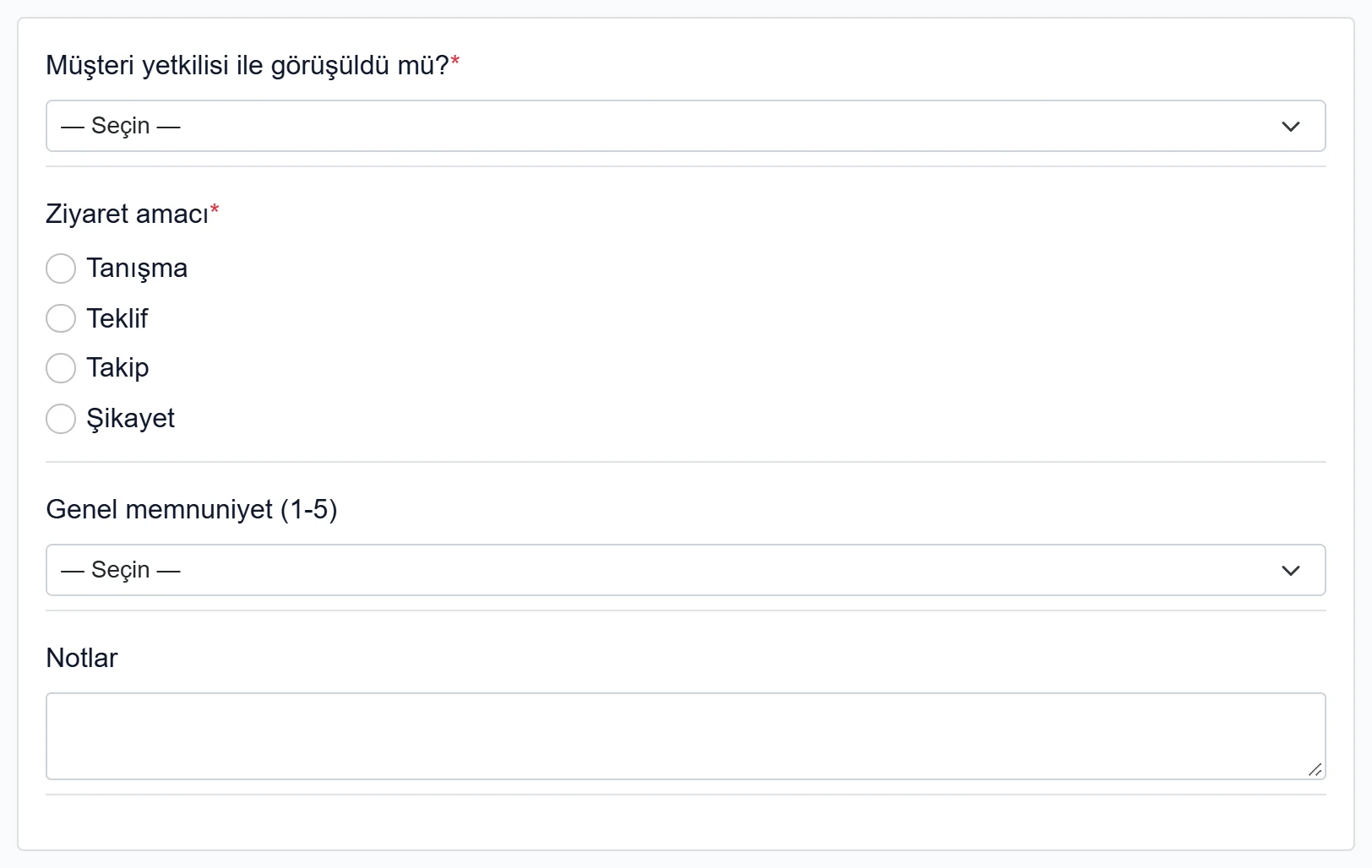
- 1Questions Questions of the question set linked to the activity type; answers are stored with Save.
Questions with a red asterisk are required. If the set is linked as «required on close», answer them before setting the activity to Completed or Closed. Answers appear in Reports → Checklist.
If the account or lead has a location, a map is shown below the form.
Entering a new activity: step by step
- Click + New activity.
- On the General tab choose the Type, enter the Subject and set the status.
- Tick the responsible users under Assigned staff.
- Find the Account or Lead with Select.
- On the Details tab enter the Planned date; the activity appears on this day in the calendar.
- Click Save. The Attachments tab and the checklist become available.
- After the visit set the status to Completed, write the Result note on Descriptions and save again.
Preview / Print opens the saved activity as a printable page in a new tab.
Organisation tab
In companies with the organisation feature (venue, event, menu price) + Organization in the list opens an organisation record; an existing activity can get one with Add organization.
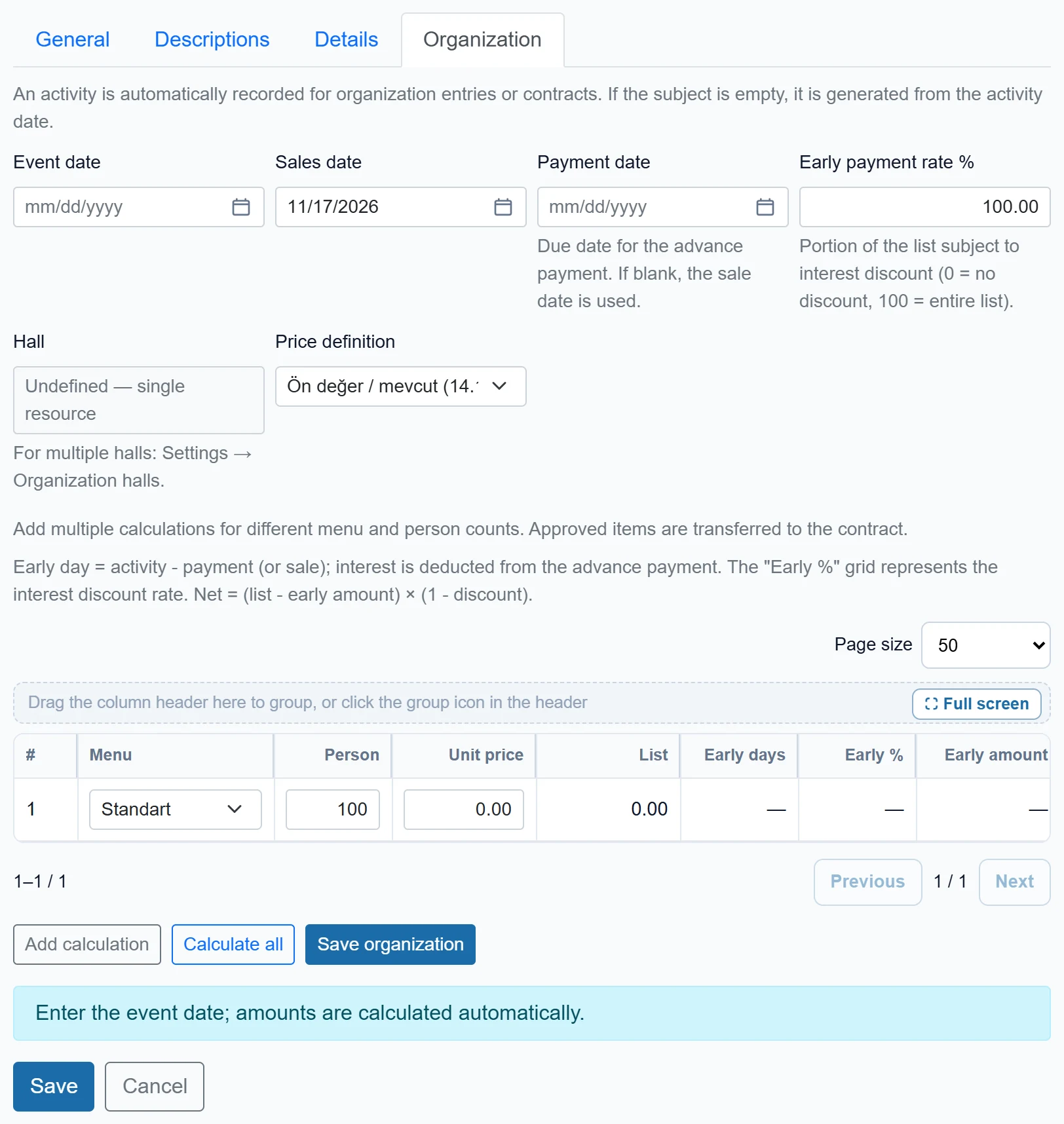
- 1Calculation table List, early payment and net amounts by menu, guest count and unit price.
- 2Add calculation A new row for a different menu / guest count.
- 3Calculate all Recalculates all rows from the parameters.
- 4Save organisation Saves the organisation; venue and day conflicts are checked.
| Field | Sign in | Description |
|---|---|---|
| Event date | Text | Day of the event. Entering it calculates the amounts; venue conflicts are checked for this day. Placeholder: «mm/dd/yyyy» |
| Sales date | Text | Day of the sale; defaults to today. Placeholder: «mm/dd/yyyy» |
| Payment date | Text | Day the advance payment arrives. If empty, the sale date is used; the early-payment discount is based on it. Placeholder: «mm/dd/yyyy» |
| Early payment rate % | Text | Share of the list amount subject to the interest discount (0 = none, 100 = full list). |
| Hall | Text | Event venue. With a single venue it reads «Undefined — single resource»; several venues are defined under Organisation venues. Placeholder: «mm/dd/yyyy» |
| Price definition | Choice list | Price set from the organisation parameters; defaults to the one valid on that day. |
| Page size | Choice list | How many rows the calculation table shows per page. Options: Automatic · 25 · 50 · 100 · 200 · All |
- Enter the event date; amounts are calculated from the parameters.
- If several venues exist, choose the venue.
- Enter menu and guest count in the table; use Add calculation for alternatives.
- Click Save organisation.
Prices and venues come from the Organisation parameters and Organisation venues screens.
Delete permanently removes the activity with its attachments and checklist answers. Instead of deleting a visit that did not happen, set it to Cancelled with a cancellation note so it stays traceable.
Common messages
| Message | Cause | Solution |
|---|---|---|
| Aktivite tipi gereklidir. (activity type required) | Saved without a Type. | Choose the type on the General tab. |
| This day is closed for activity records. | The planned day is closed for activities in the calendar. | Choose another day or reopen it in the Calendar. |
| Zorunlu soru cevaplanmadı: … (required question not answered) | A required-on-close checklist is incomplete. | Answer the required questions. |
| Activity could not be saved. | The server could not complete the save. | Check the data and try again. |
| Hall selection is required. | No venue chosen in a multi-venue company. | Choose the venue on the Organisation tab. |
| Another organization is already booked for this hall on this date. | Another organisation exists on the same day and venue. | Choose another day or venue. |
| This day is closed for organization records. | The day is closed for organisations. | Reopen the day in the Calendar or choose another day. |
| Firma seçili değil. (no company selected) | The session has no company. | Sign out and sign in again. |