
 AsyaTicari
 AsyaRestoran
 AsyaOtel
 AsyaCrm
 AsyaKlinik
 AsyaSpor
 AsyaSSH
 AsyaEmlak
 AsyaFilo
 AsyaPuantaj
 AsyaİSG
 AsyaİHD
 Kolay Öğren
AsyaPuantaj · Employee
Employees
Staff list, Excel import, bulk actions and the staff card (general, locations, remote work, punches).
On the Employee screen you define, list and manage in bulk the people who punch in and out.
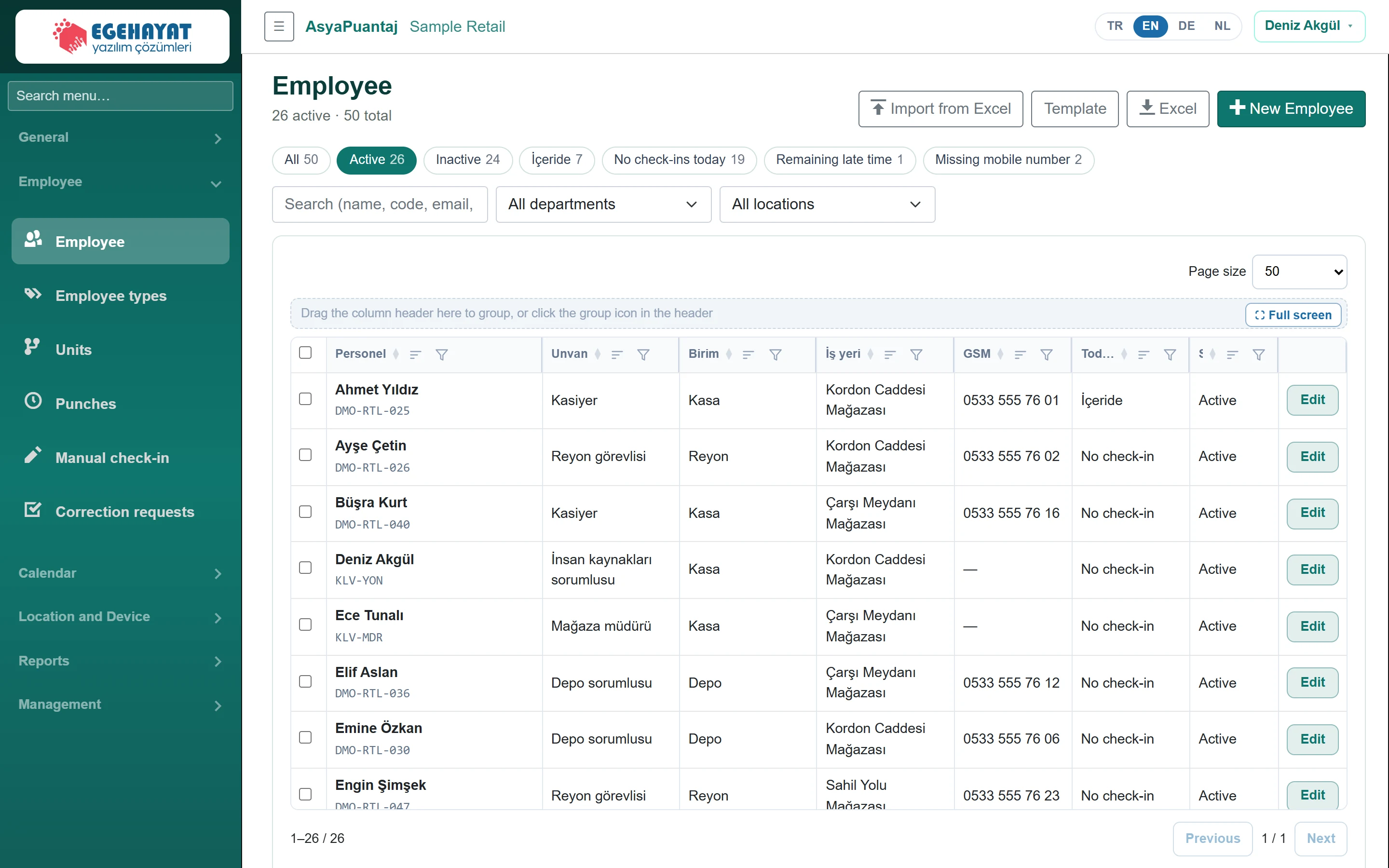
- 1Import from Excel Import staff from an Excel (.xlsx) file; download the Template first.
- 2New Employee Open a new staff card.
- 3All50 Quick filters: active, inactive, inside, no entry today, late, missing mobile.
- 4All departments Search by name, code, e-mail, mobile; filter by department and workplace.
- 5⛶ Full screen Drag a column header here to group.
- 6Edit Opens the staff card.
List and filters
- Use the chips to switch between All, Active, Inactive, Inside, No entry today, Late, Missing mobile.
- The search box searches name, code, e-mail and mobile; narrow down with the department and workplace lists.
- The table supports sorting, filtering, grouping and Full screen; Edit on a row opens the staff card.
- Excel downloads the list. Import from Excel adds staff in bulk from an .xlsx file (max 5 MB); download the Template first for the columns. Faulty rows are listed on the screen as import warnings.
Bulk actions

- 1Activate Activate or deactivate the selection.
- 2Assign calendar… Assign a calendar and / or department to the selection, then Apply.
- 3The application download link and company code … Sends the app download link and company code by SMS.
- 4Generates temporary passwords for the selected … Generates temporary mobile passwords; the list downloads as CSV.
Ticking rows opens the bulk action bar:
- Activate / Deactivate changes the status of the selection.
- Choose Assign calendar… and / or Assign department… and click Apply.
- SMS invitation sends the app download link and company code by SMS (an SMS provider must be configured).
- Temporary password (CSV) creates temporary mobile passwords for the selected active staff; the list downloads as CSV and the password is changed at first sign-in.
Staff card
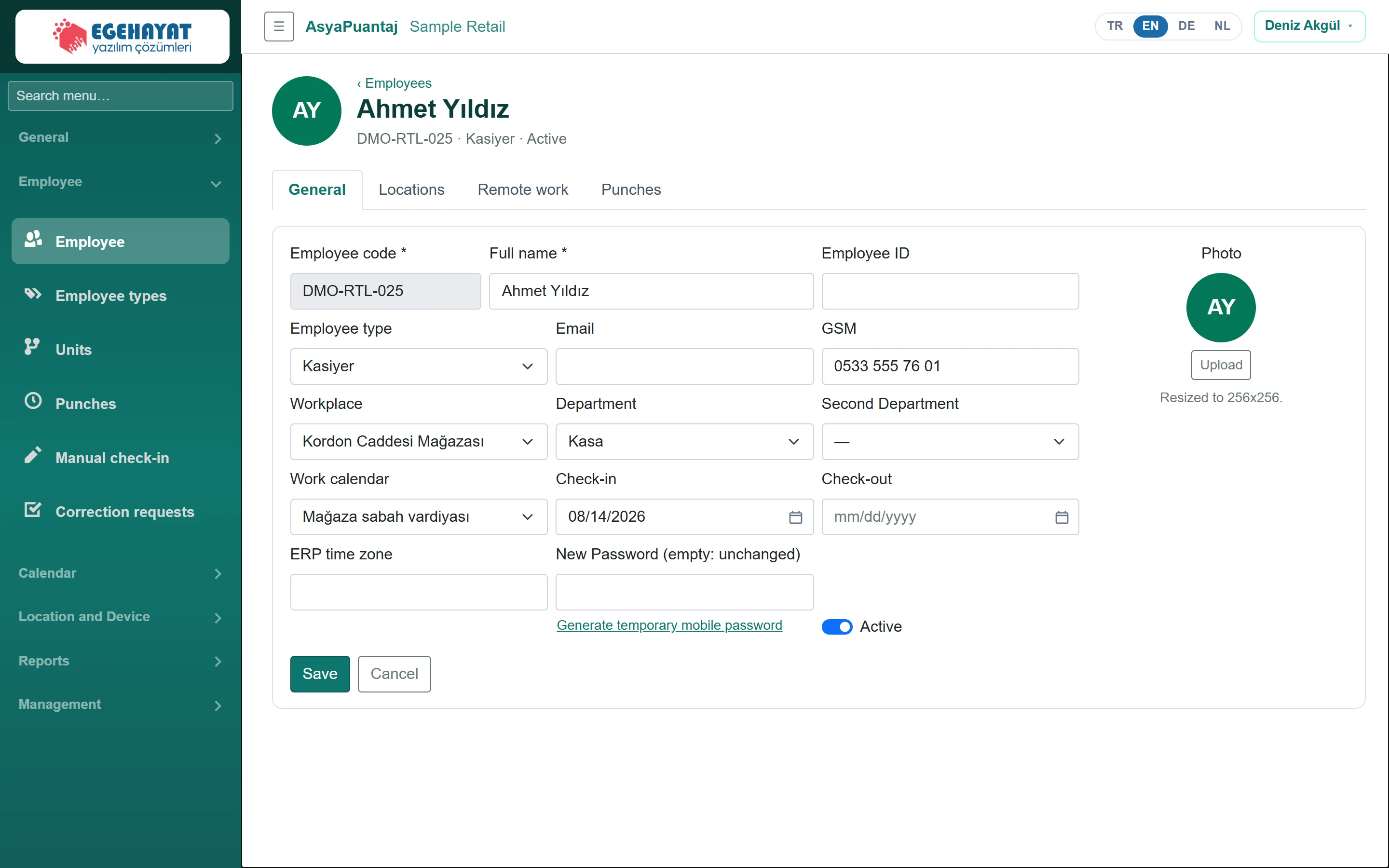
- 1General Tabs: general, locations, remote work, punches.
- 2DMO-RTL-025 · Kasiyer · Active Code, job title and status.
General
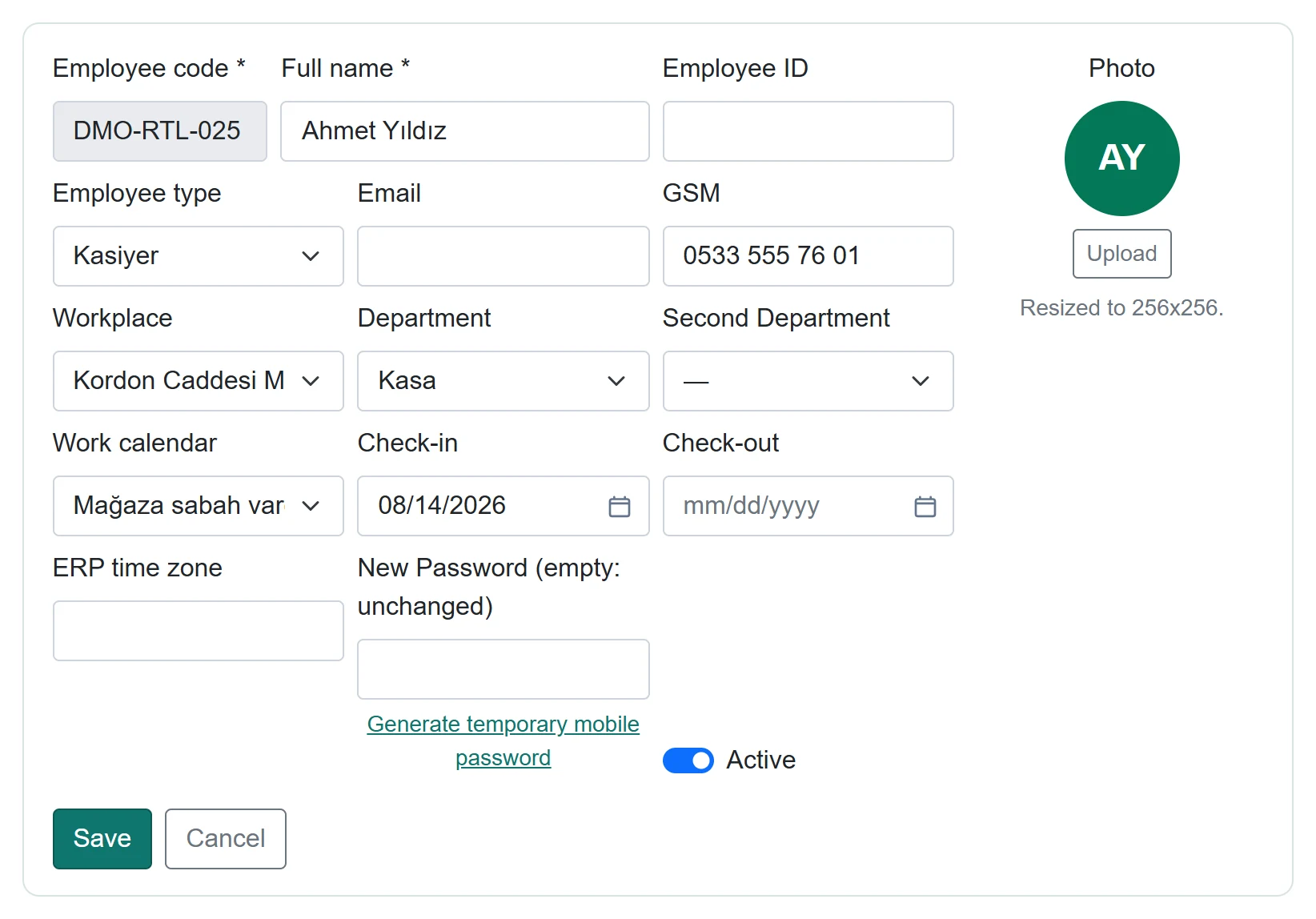
| Field | Sign in | Description |
|---|---|---|
| Employee code required | Text | Unique staff code; used with the company code for mobile sign-in. Cannot be changed after saving. |
| Full name required | Text | Staff member's full name. |
| Employee ID | Text | Optional registry number. |
| Employee type | Choice list | Job title, chosen from the staff types list. |
| E-mail address; for the panel and notifications. | ||
| GSM | Text | Mobile number; for SMS invitations and calling from the evacuation list. Placeholder: «05xx xxx xx xx» |
| Workplace | Choice list | Workplace the person belongs to. Options: Çarşı Meydanı Mağazası · Kordon Caddesi Mağazası · Sahil Yolu Mağazası |
| Department | Choice list | Main department; used as a filter in reports and notifications. Options: Depo · Kasa · Reyon |
| Second Department | Choice list | Optional second department. Options: Depo · Kasa · Reyon |
| Work calendar | Choice list | If empty, the department's calendar applies, otherwise the company default. Options: Department / Company default · Mağaza akşam vardiyası · Mağaza sabah vardiyası · Standart 09-18 |
| Check-in | Text | Start date. Placeholder: «mm/dd/yyyy» |
| Check-out | Text | Leaving date. Placeholder: «mm/dd/yyyy» |
| ERP time zone | Text | Time code mapping in the ERP. |
| New Password (empty: unchanged) | Text | Mobile / panel password; unchanged when empty. At least 6 characters. |
| Active | Checkbox | Inactive staff cannot punch and are listed separately. |
| Photo | Text | Profile photo; resized to 256×256 (max 512 KB). |
| Upload | Text | Selects a photo file (image). |
- For a new person click New Employee; Employee code, Full name and the first Password are required.
- Choose workplace, department and work calendar. Without a calendar the department's applies, otherwise the company default.
- Click Add employee (when editing, Save).
For an existing person, Generate temporary mobile password below the password field creates a temporary password shown only once; the person sets a new password at first sign-in.
Locations
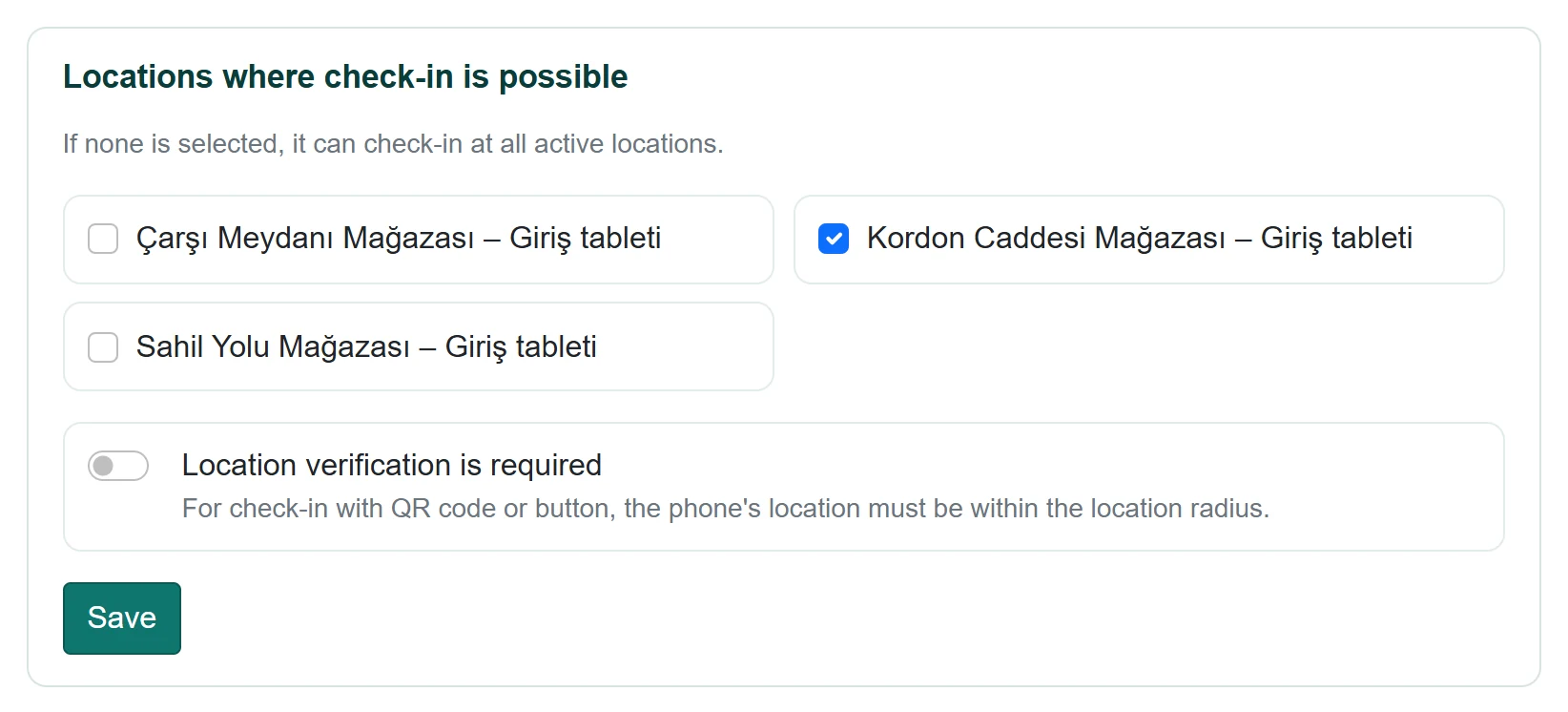
- 1Çarşı Meydanı Mağazası – Giriş tableti Tick the locations where the person may punch; none ticked means all.
- 2Location verification is required Location check: for QR / button punches the phone must be within the location radius.
Tick the locations where the person may punch; with none ticked, all active locations are allowed. With Location verification is required on, the phone must be within the location radius for QR or button punches.
Remote work
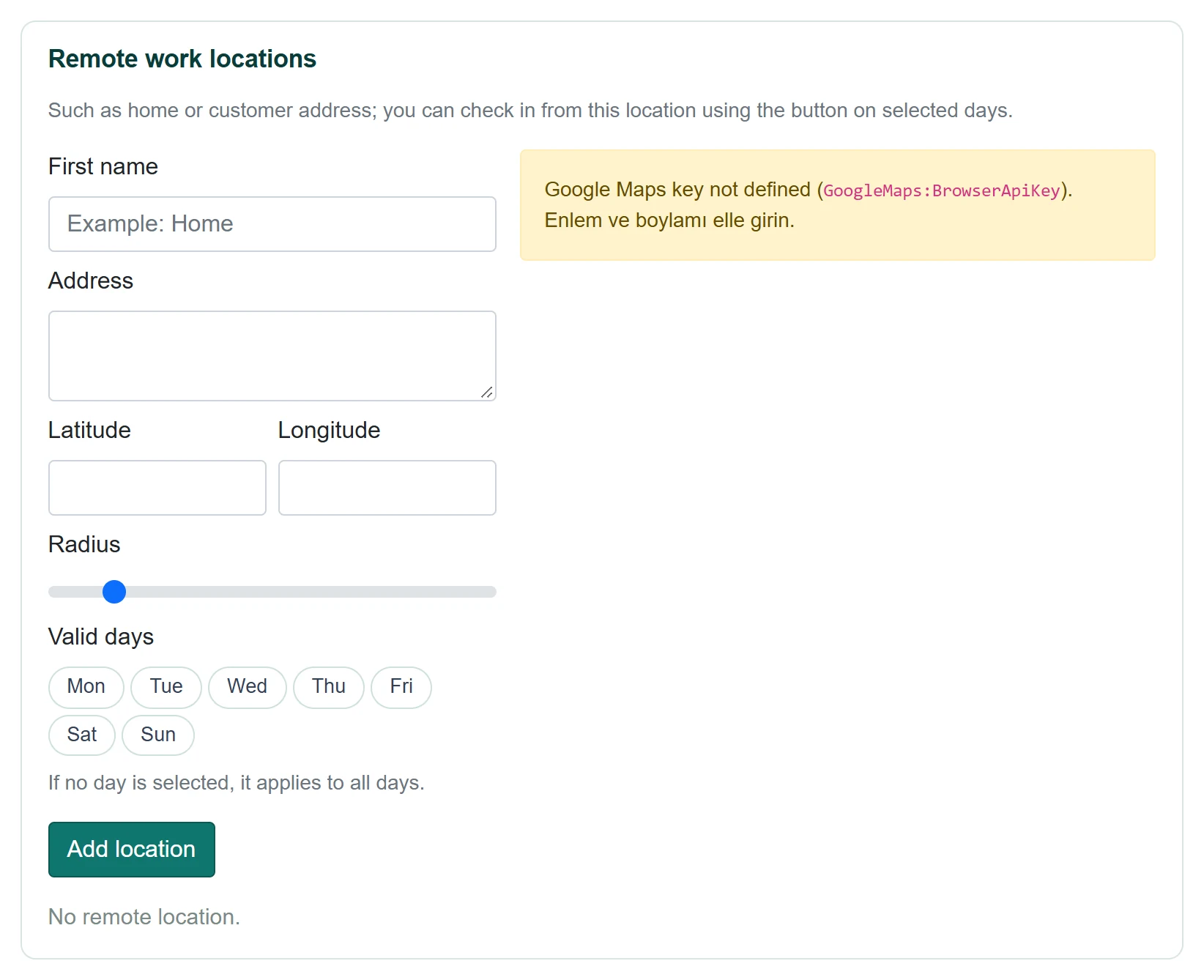
| Field | Sign in | Description |
|---|---|---|
| First name | Text | Name of the location (e.g. Home). Placeholder: «Example: Home» |
| Address | Long text | Full address. |
| Latitude | Text | Picked on the map or typed. |
| Longitude | Text | Picked on the map or typed. |
| Radius | Text | Distance within which a button punch is accepted (25–1000 m). Placeholder: «Example: Home» |
| Valid days | Text | Every day if none selected. Placeholder: «Example: Home» |
Define places such as home or a customer address; on the selected days the person can punch with the button from there. Name and a point on the map are required; click Add location.
Punches
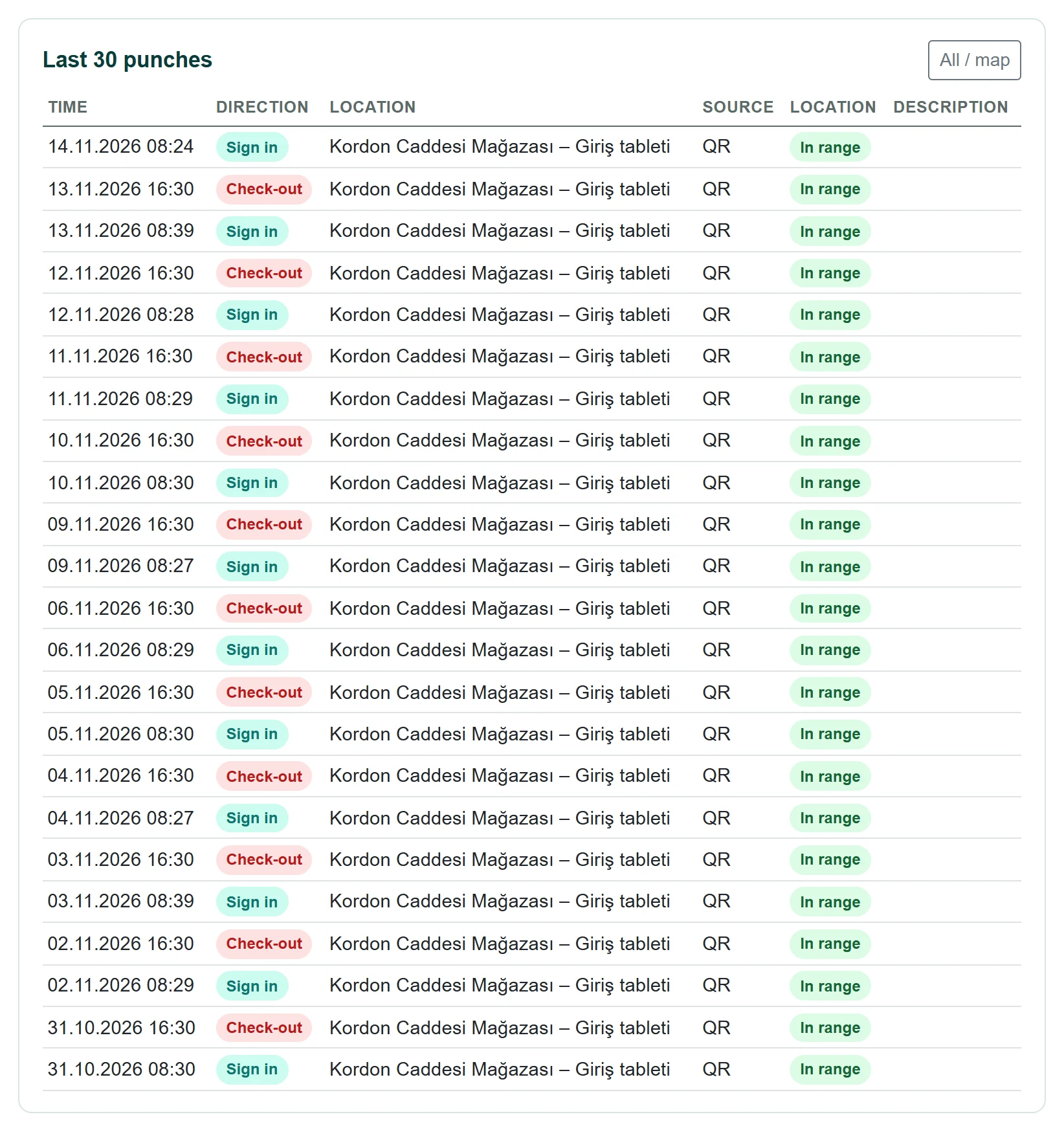
- 1All / map Opens all of the person's punches (and the map) on the Punches screen.
The person's last 30 punches; out-of-area scans show the distance. All / map opens all punches on the Punches screen.
With an enabled ERP connection, new staff, name, e-mail, workplace, department and dates come from the ERP; these fields are locked and an ERP lock notice is shown.
Common messages
| Message | Cause | Solution |
|---|---|---|
| Code and name are required. | Employee code or full name is empty. | Fill in both fields. |
| Enter the initial password. | Password empty for a new person. | Enter a password. |
| Password must be at least 6 characters. | Password too short. | Enter at least 6 characters. |
| This employee code is already in use. | The code belongs to someone else. | Use a different code. |
| Only a company administrator can change a company administrator's password. | A non-admin tried to change an admin's password. | Ask a company administrator. |
| Photo could not be read (max 512 KB). | File too big or corrupt. | Choose a smaller image. |
| Name and map location are required. | Remote location without name or point. | Enter a name and pick a point. |
| File cannot be larger than 5 MB. | Excel file too big. | Split the file. |