
 AsyaTicari
 AsyaRestoran
 AsyaOtel
 AsyaCrm
 AsyaKlinik
 AsyaSpor
 AsyaSSH
 AsyaEmlak
 AsyaFilo
 AsyaPuantaj
 AsyaİSG
 AsyaİHD
 Kolay Öğren
AsyaKlinik · Clinic definitions
Resources
Rooms, devices, cabins, operating rooms, cages, beds and vehicles; conflicts in appointment and series planning are checked against them.
Resources defines the physical facilities used in appointment and session planning, such as rooms, devices or beds. A resource never gets more appointments at the same time than its capacity. Resources are mainly used in physiotherapy, hair transplant, veterinary (cages, boarding) and home / residential care; the screenshots below come from a home care company.
asyaklinik · /login
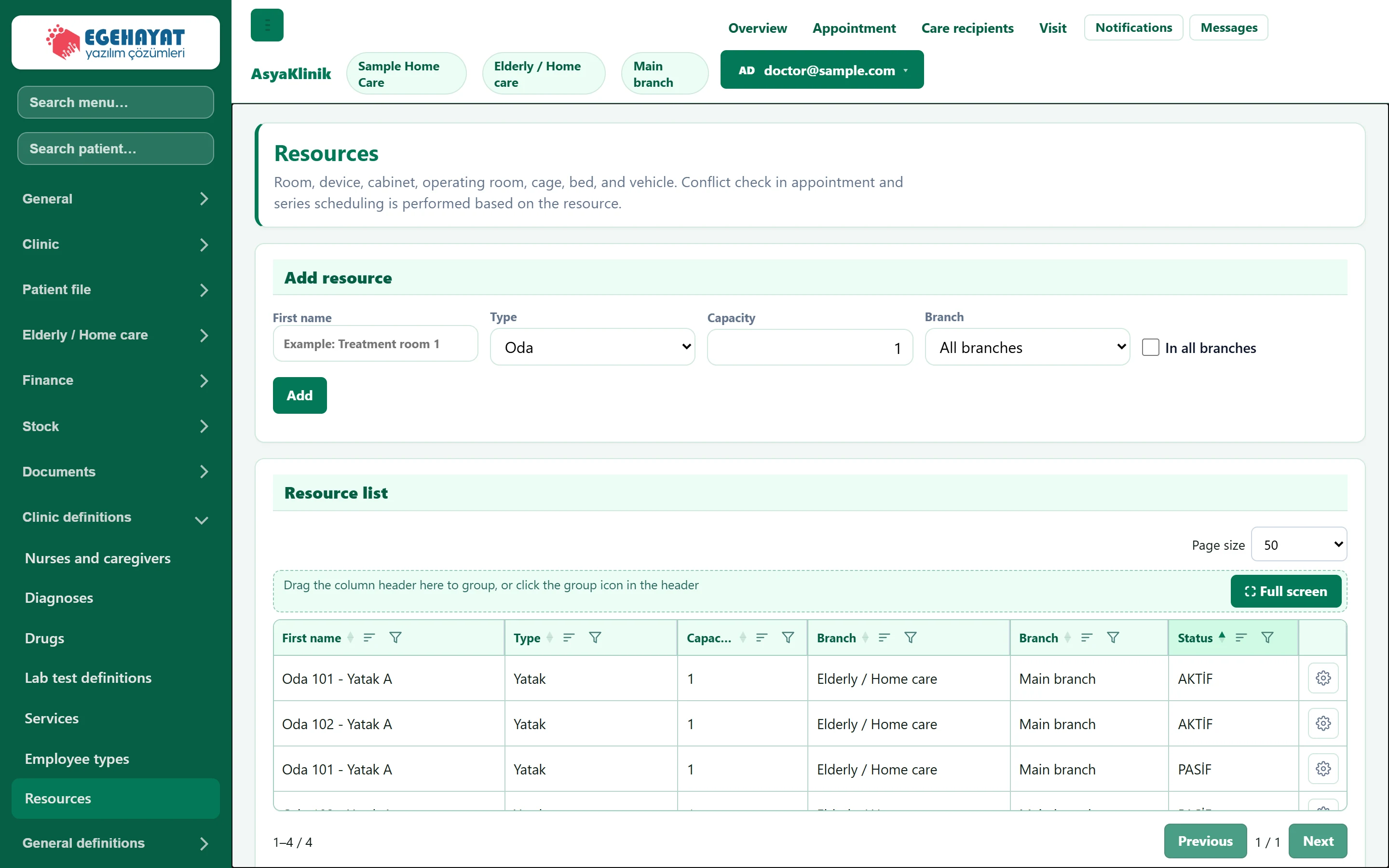
- 1Add resource Add resources such as rooms, devices or beds.
- 2Resource list Defined resources and their status.
- 3Row menu Edit, or deactivate / activate.
Adding a resource
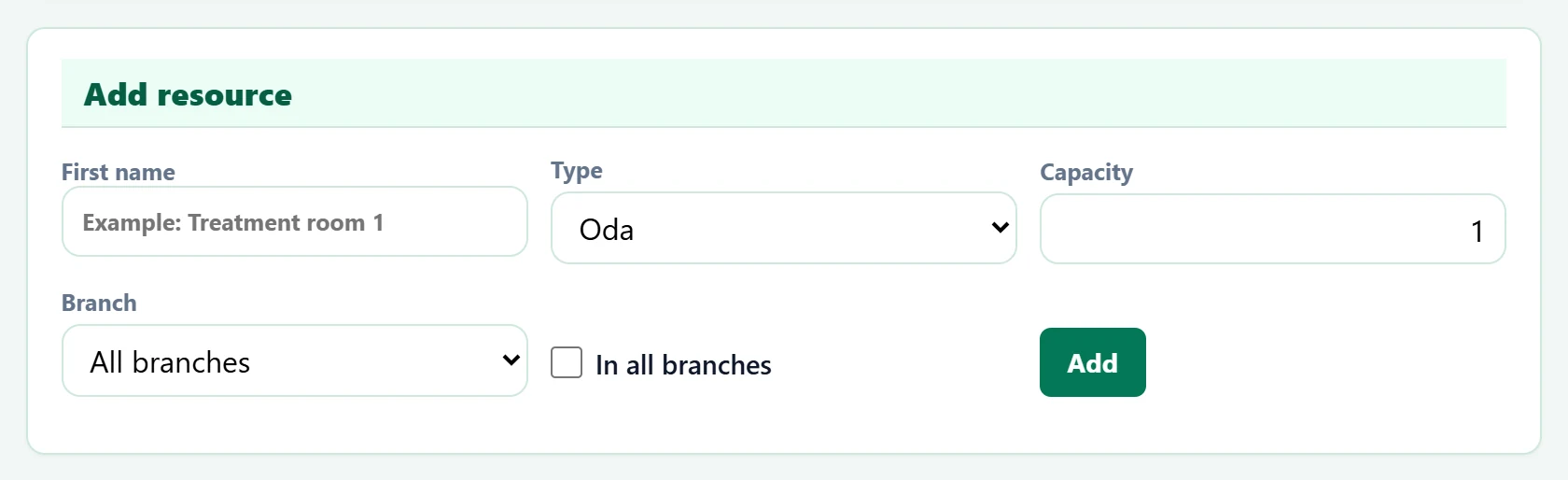
Part of the screenAdd resource
| Field | Sign in | Description |
|---|---|---|
| First name | Text | Name of the resource (e.g. Treatment room 1). Required. Placeholder: «Example: Treatment room 1» |
| Type | Choice list | Room, device, cabin, operating room, cage, bed or vehicle. Options: Oda · Cihaz · Kabin · Ameliyathane · Kafes · Yatak · Araç |
| Capacity | Text | How many appointments / people it can take at the same time (1–100). |
| Branch | Choice list | Specialty that uses the resource; with all specialties it appears everywhere. |
| In all branches | Checkbox | If ticked, the resource is used in all branches; otherwise only in this one. |
- Enter the name and choose the type.
- If it can take several patients at once (e.g. a group exercise room), increase Capacity.
- If it belongs to one specialty, choose it under Branch.
- If it is shared by all branches, tick In all branches.
- Press Add.
Edit in the row menu loads the data into the form (the button becomes Save, Cancel leaves). Instead of deleting an unused resource, switch it off with the deactivate action; links from past appointments are kept.
Common warnings
| Warning | Cause | Solution |
|---|---|---|
| Resource could not be saved. | Name empty or rejected by the server. | Enter a name and save again. |
| Status could not be updated. | The active / inactive change could not be saved. | Refresh the page and try again. |